Question type: Multiple choice vs. Multiple choice (open-ended)


In Moodle, you will find two types of multiple-choice questions within the 'Test' activity. To avoid any confusion, we would like to explain the differences between the two question types here, so that you can quickly make the right choice for your needs.

Target Audience
Instructors

Objectives
Practice & Assessment

Additional Documentation
Moodle Docs: Multiple Choice Question Type

Moodle Version
This article is based on
Moodle version 4.1

Authors
Kathrin Osswald
kiz – Media Department
Web & Teaching Support Team

Carolin Hecht & Kristina Busch
ZLE – Center for Teaching Development

Context
Activities & Resources > Quiz Activity

License
This article is licensed under a Creative Commons License
All information about the license

Prerequisite: Test

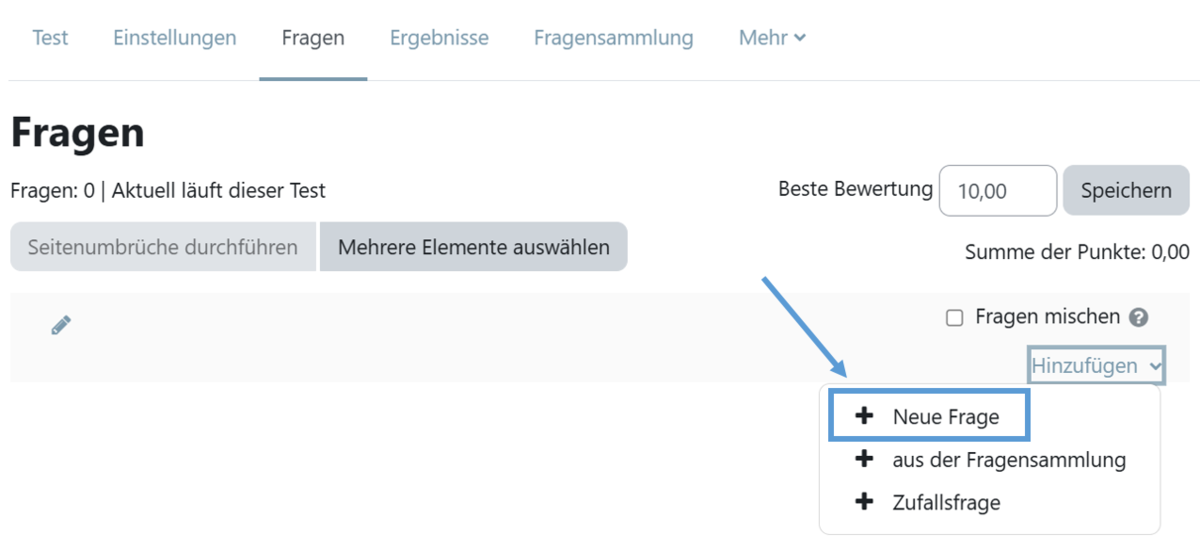
To add a Multiple Choice / Multiple Choice (OU) question type to a test, you must first have created the Test activity within the course and be in edit mode.

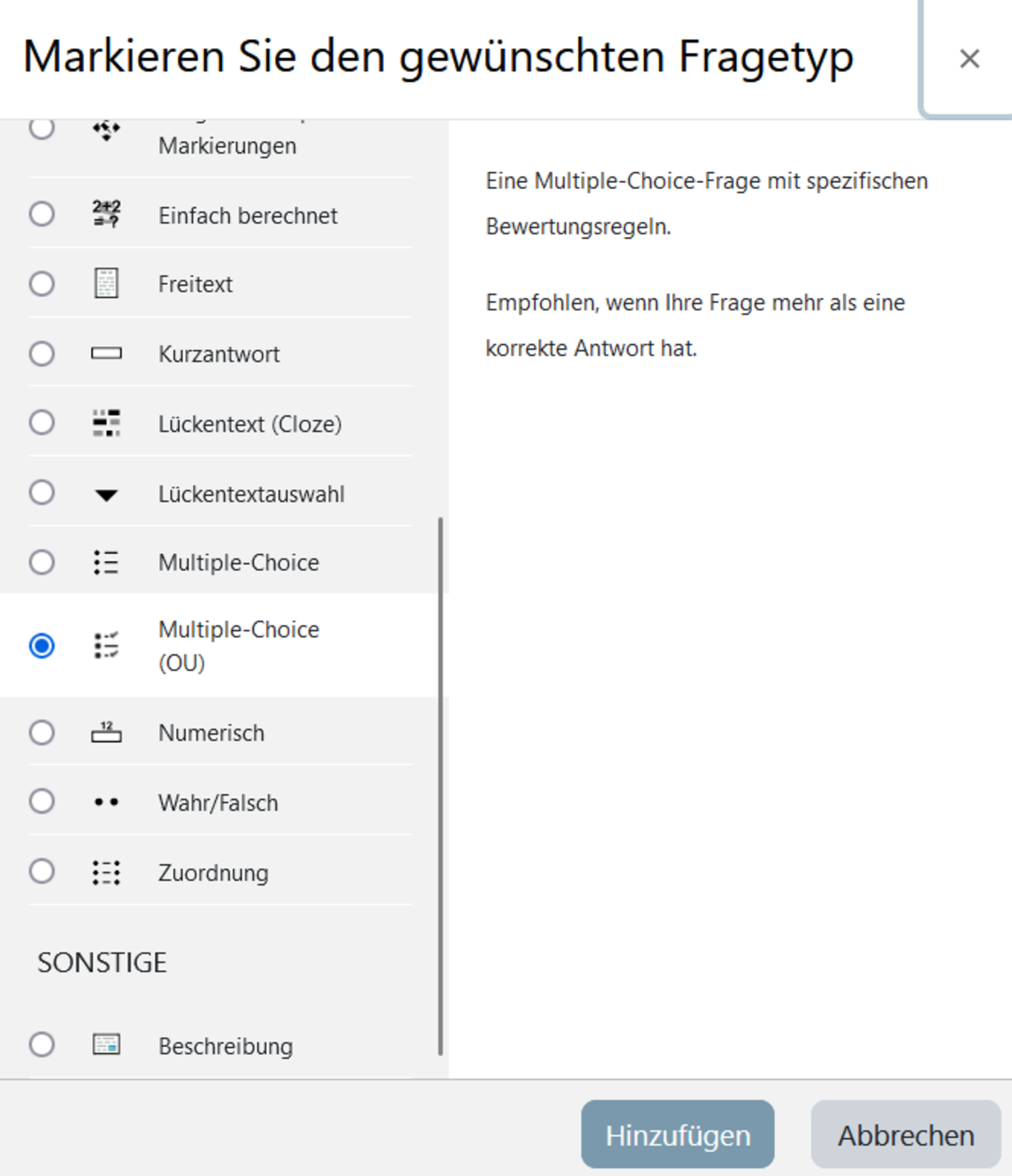
Open the test and select Add question (Fig. 1). On the page that appears, select Add and New question (Fig. 2). You can now select a specific question type from the list. Here, select the question type Multiple Choice or Multiple Choice (OU). Confirm your selection by clicking the Add button (Fig. 3).

Figure 1
Figure 2
Figure 3

Set general preferences

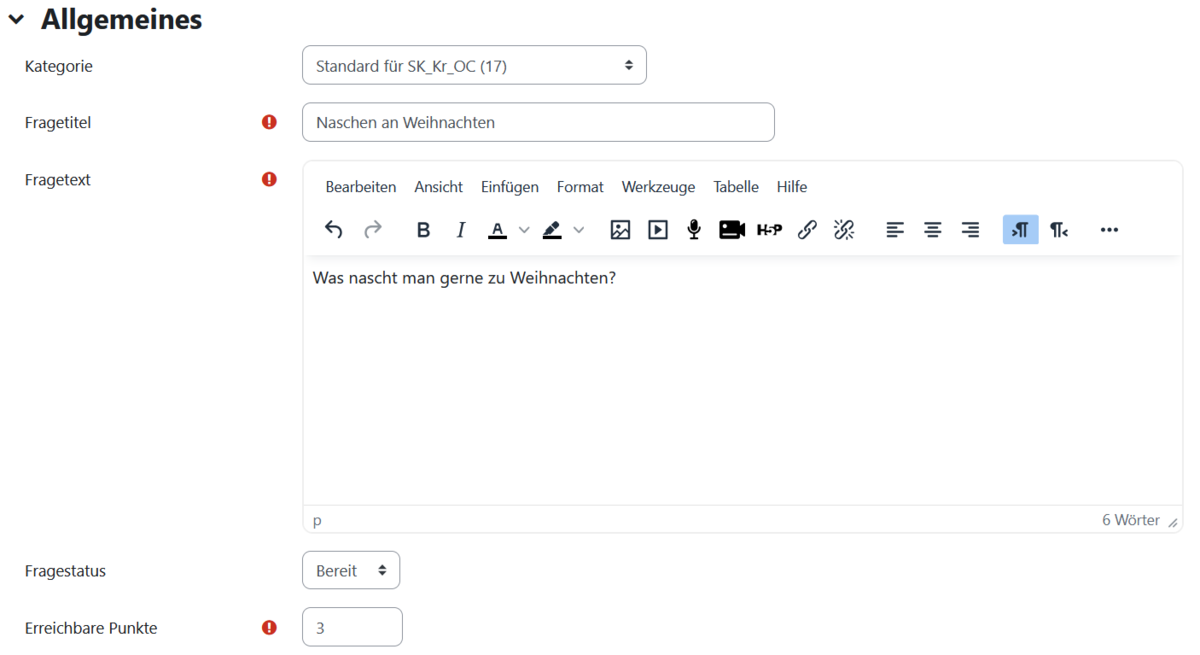
On the page that now appears, start by filling in the mandatory fields under the ‘General’ menu item. These are marked with a white exclamation mark inside a red circle.

Under ‘Question title’, give the question a name under which it will be listed in your question catalogue. Under ‘Question text’, enter the question for which you would like to receive a multiple-choice answer from the students (Fig. 4).

You then set the number of marks to be awarded for this task.

Figure 4

The answer options: multiple choice

If you scroll further down, you will find the option ‘Shuffle answers’ in the ‘General’ category, which you can enable.

Next, we come to the ‘Answers’ category. Here, you can enter your answer options and the corresponding feedback in the relevant fields.

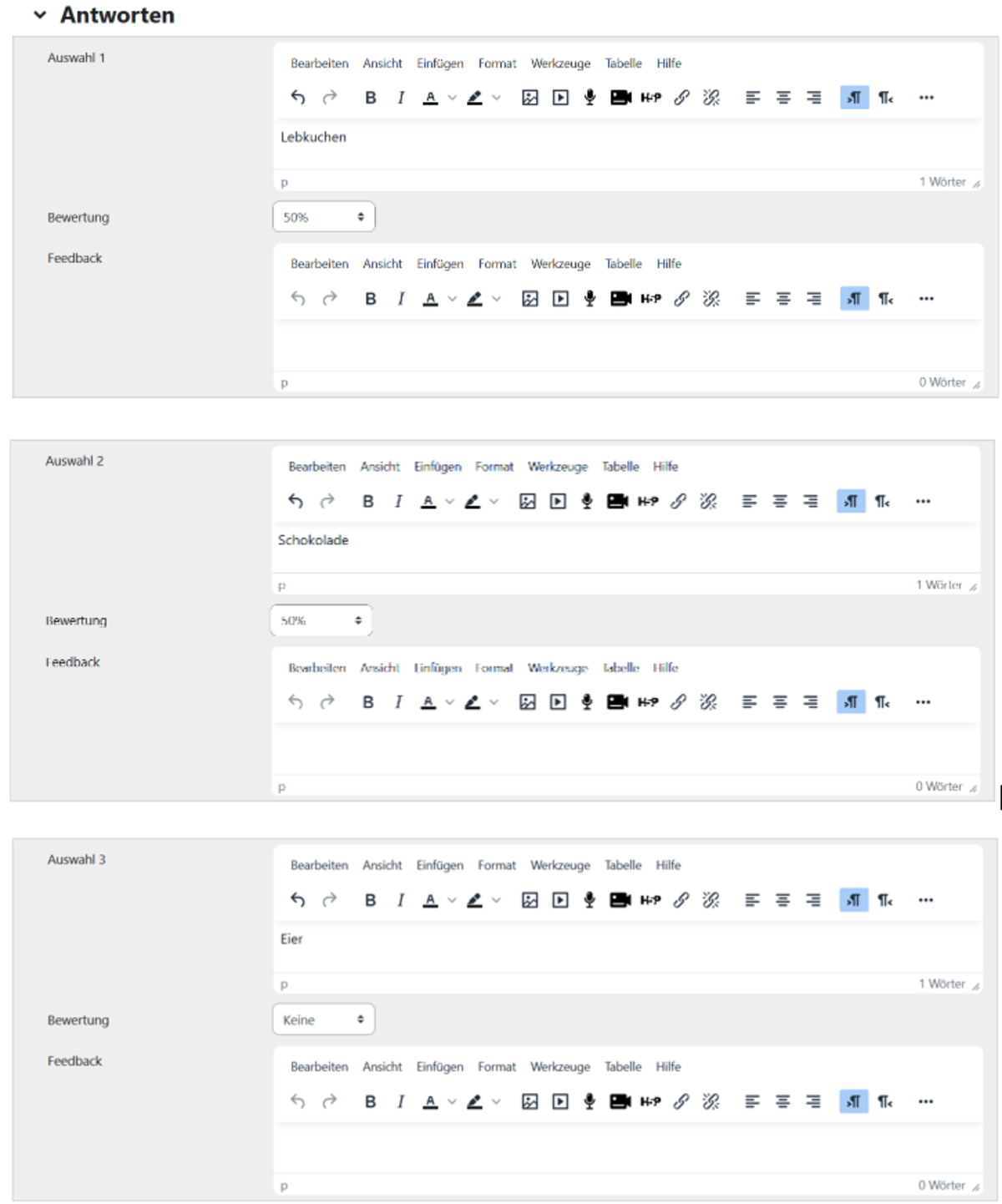
If you wish students to receive points on a pro rata basis for two possible correct answers, you must set the corresponding percentages for the correct answers yourself.

In our example in the figure below, there are two correct answers, which is why each correct answer is worth 50% of the total marks for this task (Fig. 5).

Figure 5

The answer options: Multiple choice (OU)

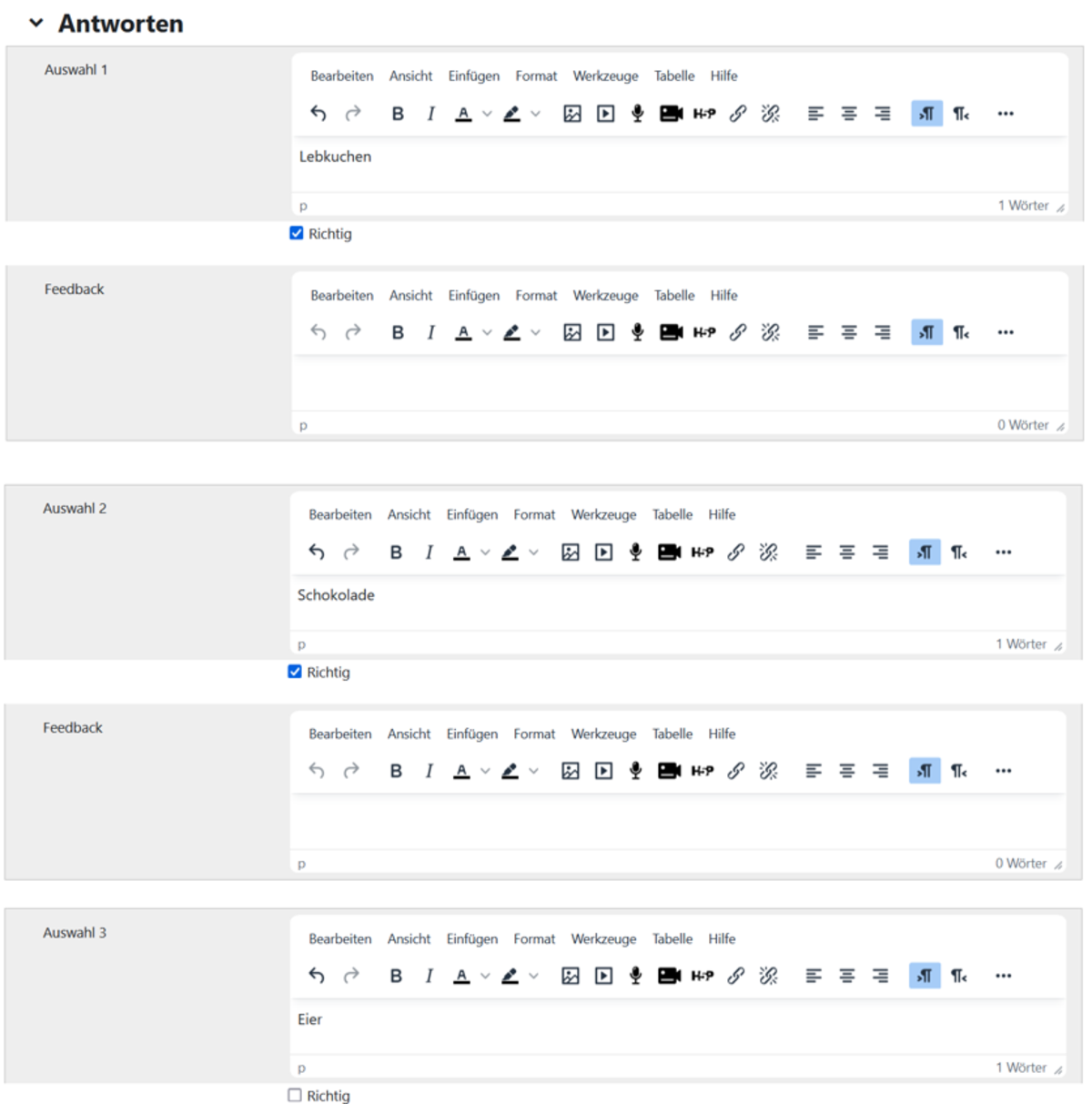
For the multiple-choice question type (OU), you also enter the possible answers and the corresponding feedback in the ‘Answers’ category. Directly below each answer, you can tick the box next to the correct one (Fig. 6). For incorrect answers, simply leave the box unticked.

For this question type, the system automatically awards the student 1/n points for each correct answer out of n possible correct answers.

Figure 6

Summary

In summary, it can be said that the multiple-choice (OU) question type is generally the easier to create. However, in this case, correct answers are always weighted equally.

With the multiple-choice question type, on the other hand, you are free to set the weighting. This means you can specify that some of the correct answers should be worth more points than others. For example, you could assign a ratio of 80% to 20%. This makes it easier to reflect more complex requirements.

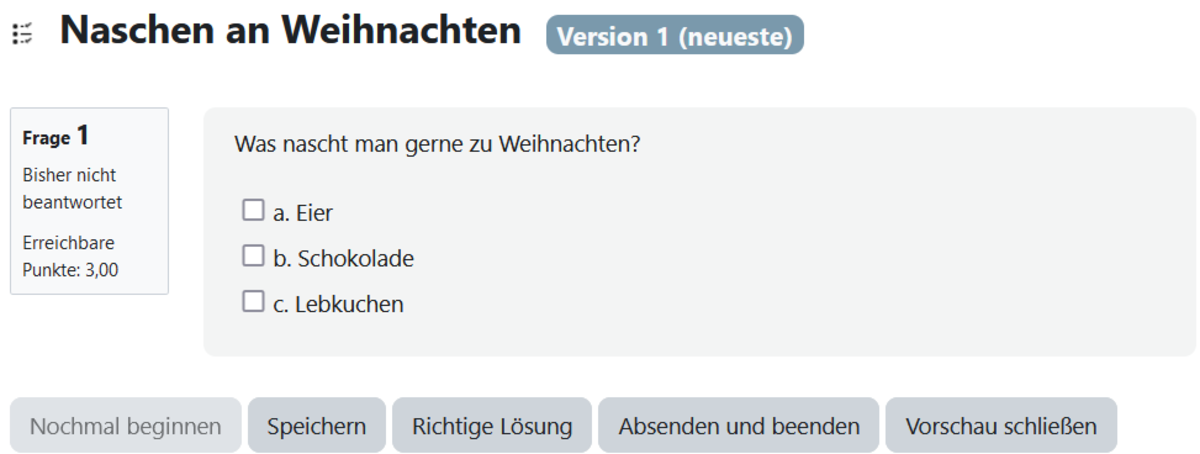
You can see the final result for both question types in the figure below.

Figure 7

Help, questions, suggestions

If you need further help* on this topic, have any questions or suggestions, please feel free to contact us at any time!

*Haveyou already thought about looking for help or a solution in our help pages on these pages or in the Moodle documentation (see above or https://docs.moodle.org/)?