Material ZOERR object

The material ZOERR object allows you to use teaching and learning materials from the Central Open Educational Resources Repository of the universities in Baden-Württemberg for your teaching. The materials may not only be viewed and copied, but also inserted into lectures, adapted and distributed.


Zielgruppe
Dozierende & Studierende

Ziele
Üben & Testen

Moodle Version 
Artikel basiert auf der
Moodle Version 3.2

Autor
Carolin Hecht
ZLE - Zentrum für Lehrentwicklung

Kontext
Aktivitäten & Materialien 

Lizenz
Dieser Artikel steht unter einer Creative Commons Lizenz
Alle Informationen zur Lizenz

General information

To create the material ZOERR object, activate the edit mode on your Moodle page. You will find the corresponding button at the top right of your page. Then go to the course section with the course and click on Create material or activity. From the options that appear, select ZOERR object.

On the page that now appears, first fill in the mandatory fields under the General menu item. These are marked with a white exclamation mark in a red circle.

Use the name (A) to give the activity a name under which it will be listed in your catalogue.

Under Description (B) you can create a description for the activity. This is optional.

ZOERR learning object

Under the ZOERR learning object section, you can add a video from the ZOERR repository to be displayed to students. To do this, click on Search in the ZOERR repository.

You will then be redirected to the ZOERR website. In the search bar, you can search for a keyword or select your own videos. Then click on the desired video and select the Apply button in the top right-hand corner. You will then be redirected to your Moodle page.

Here you can decide whether exactly the selected video is displayed or a newer version if the video is updated. You can also choose whether the video should be displayed in the same window or whether a new window should be opened.

Further settings

You can specify the availability in the Additional settings section. Here you again have three options:

  • Show on course page: The activity is available for participants. However, please note that availability may be restricted due to access restrictions.
  • Hidden from students: The activity will only be available to those who are authorised to view hidden activities.
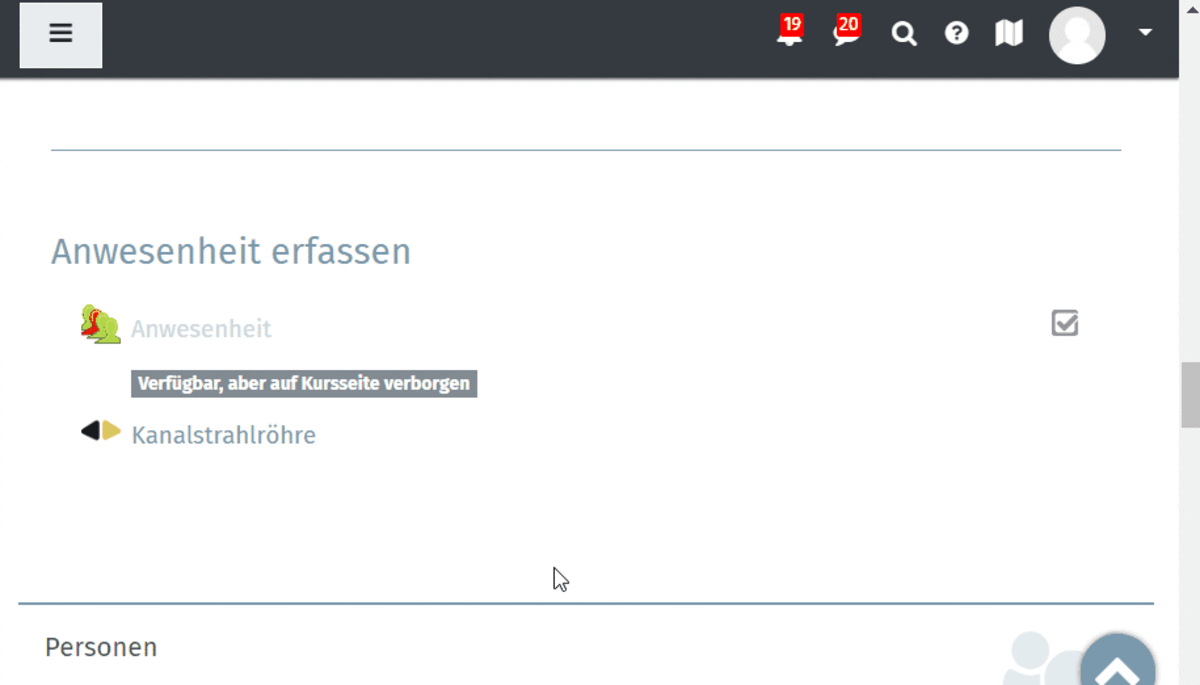
  • Available but hidden on course page: this option is useful if the course has many activities and materials, as it makes the course page clearer. If you select this option, a link to the activity must be created.

Prerequisites

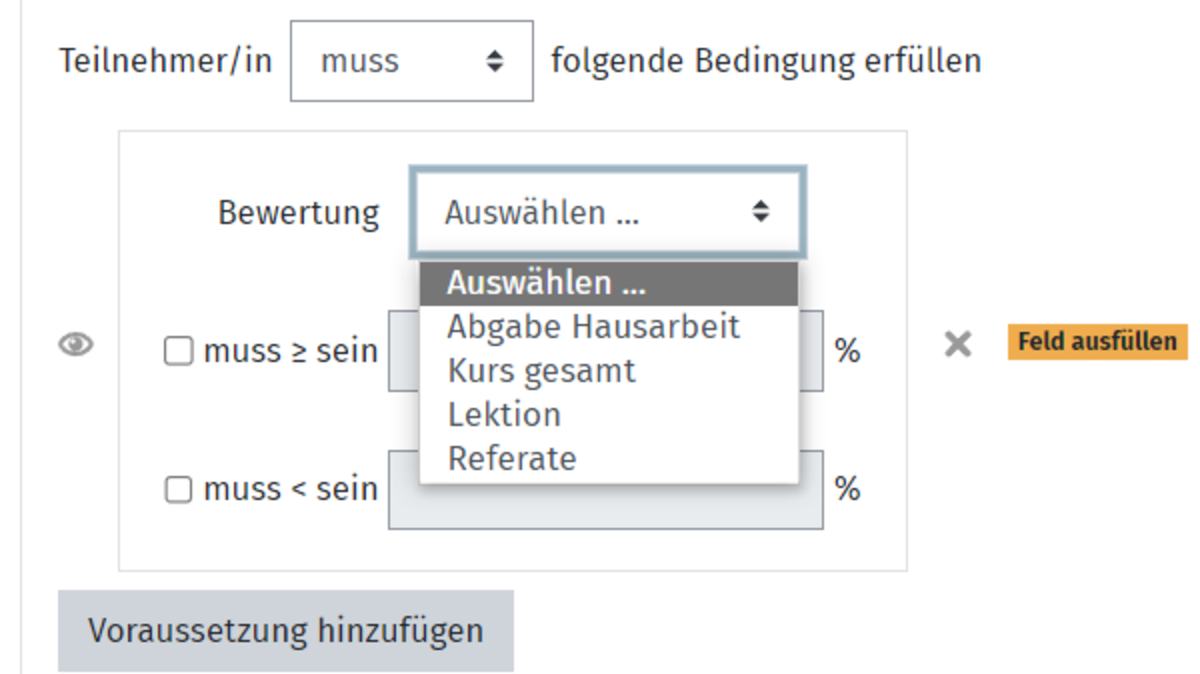
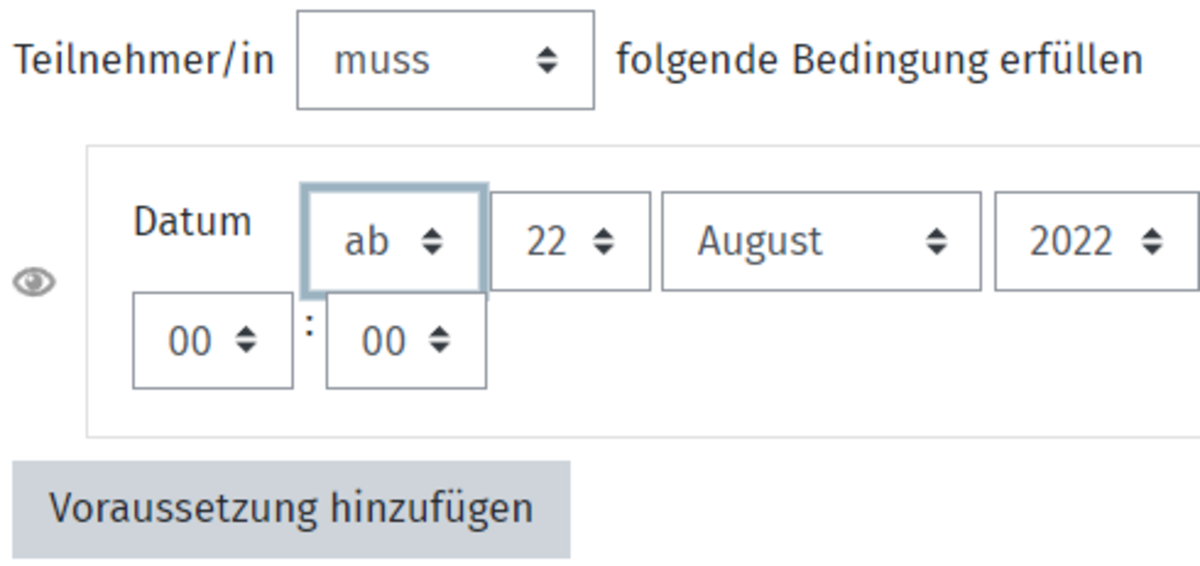
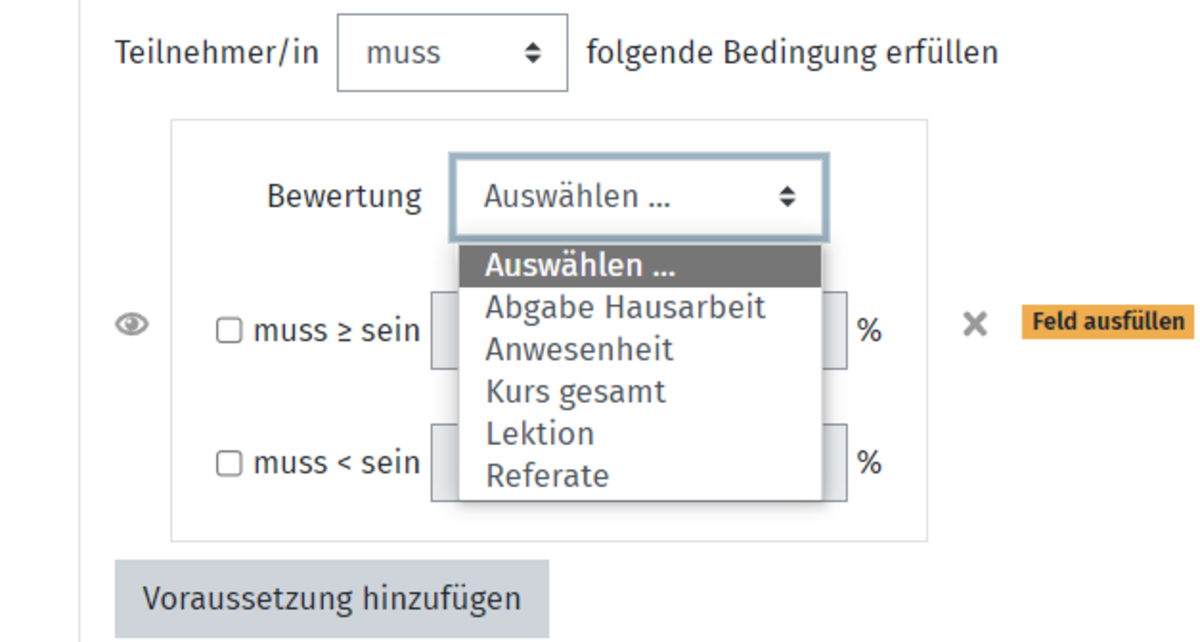
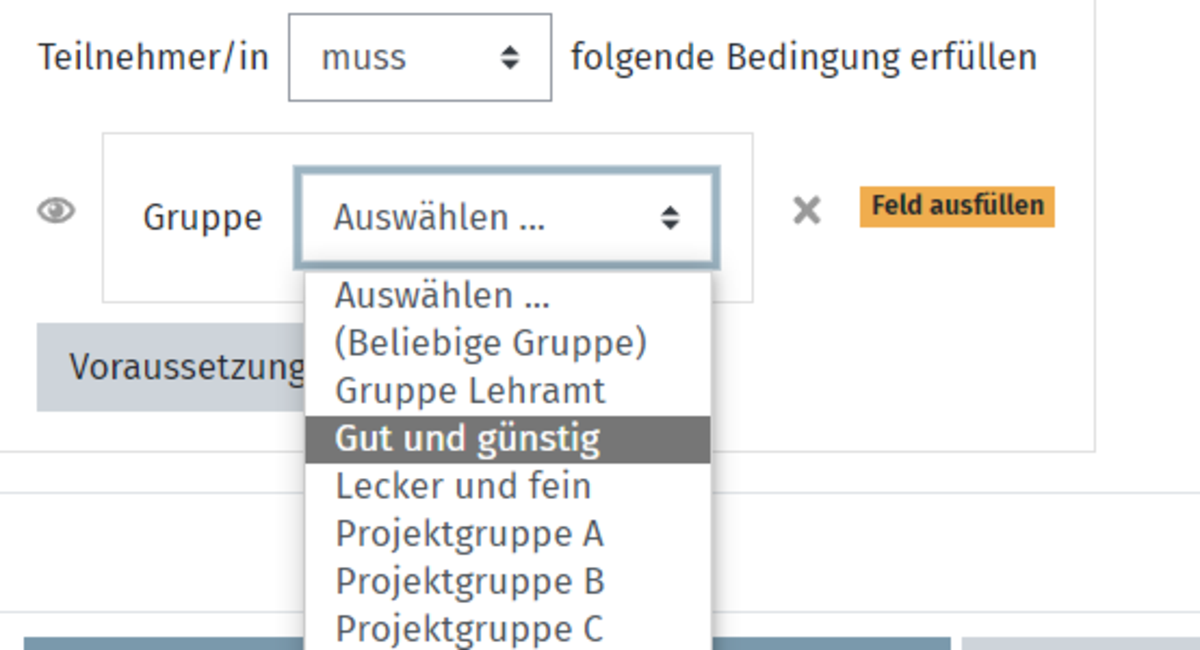
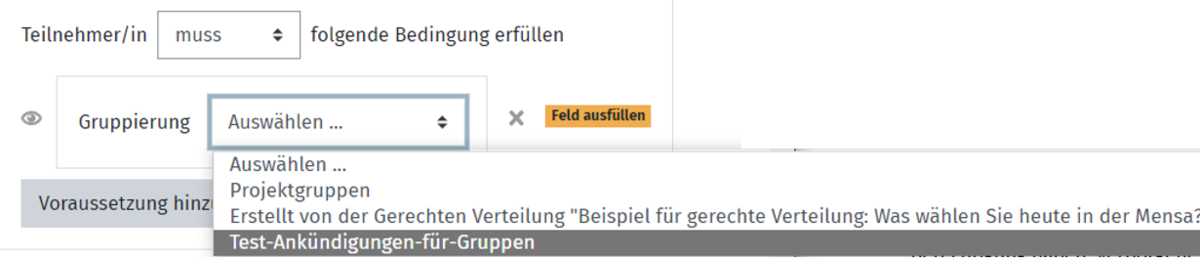
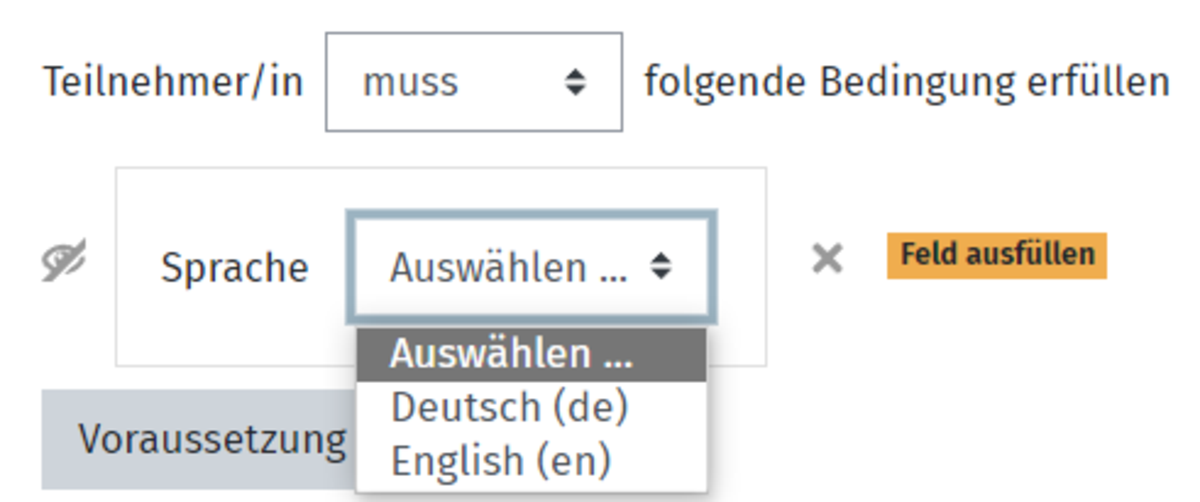
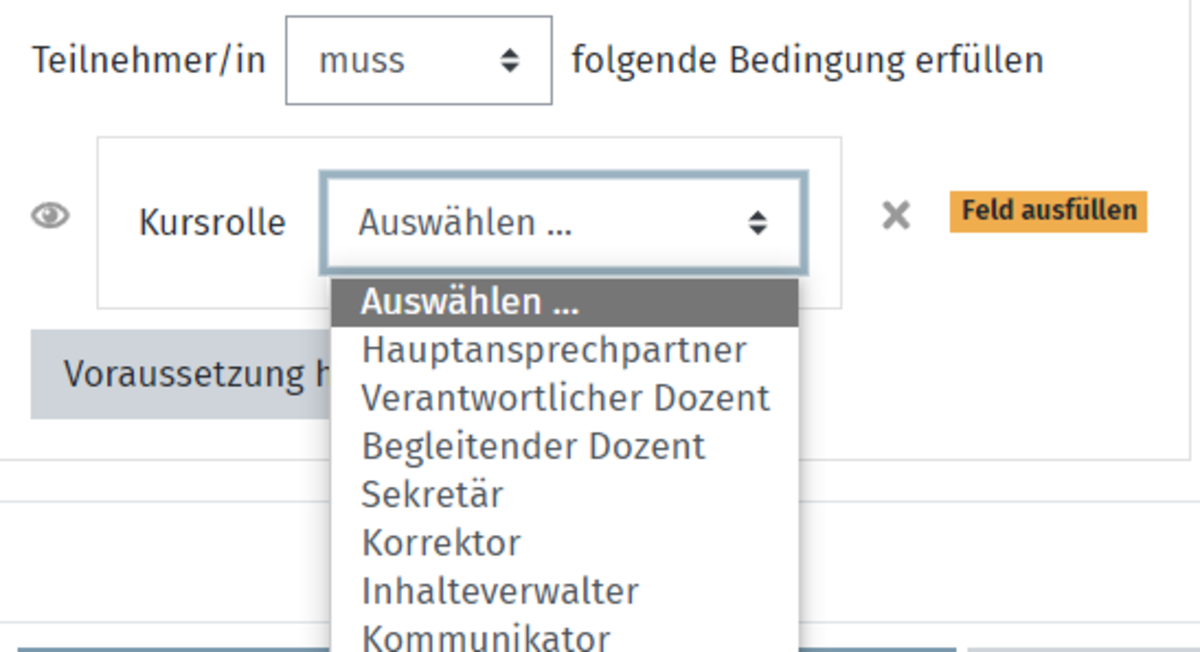
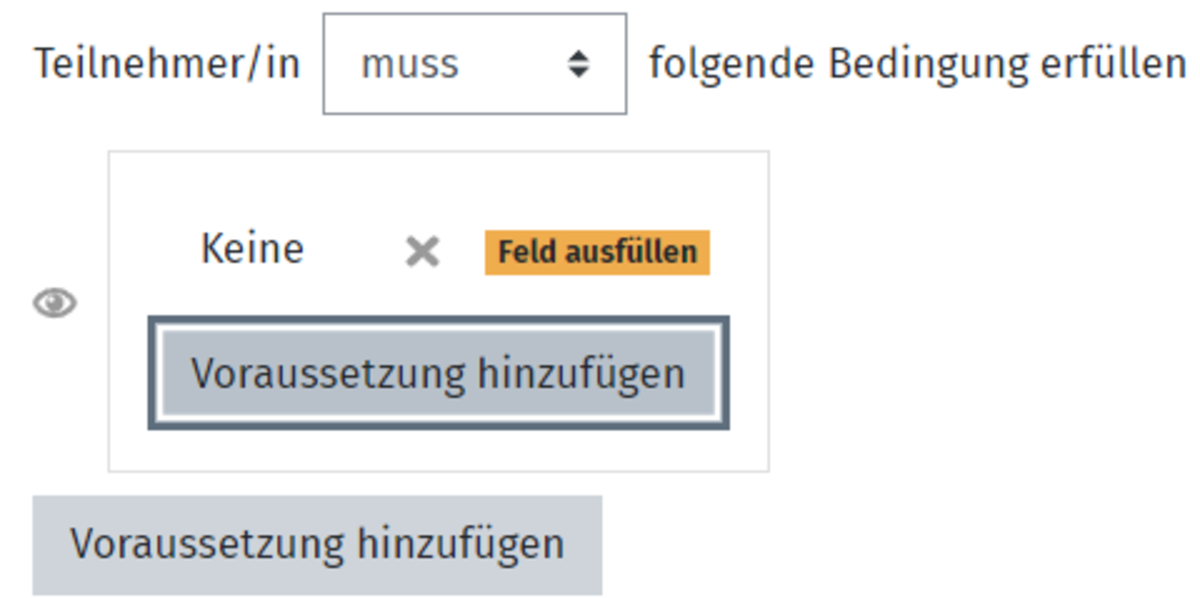
In the next section, Prerequisites, you can create the prerequisites for accessing the activities. Here you have nine different options from which you can select one or more.

You can then decide whether the activity completion should be marked and whether this should be done automatically or manually.

As soon as you are happy with your settings, click on Save and go to course.

This creates the material ZOERR object. If you now click on the object, the selected video will be displayed on the ZOERR website.

Lizenz

Creative Commons Lizenzvertrag
Texte und Bilder in diesem Artikel stehen unter der Creative Commons Lizenz CC BY 4.0

Quellenangabe bei Weiterverwendung:
"Material ZOERR-Objekt" von Carolin Hecht (Universität Ulm), lizenziert unter CC BY 4.0