Activity Mutual assessment

The Moodle activity Mutual Assessment allows the correction or assessment of a student's submitted work by other students. The assessment and correction guidelines are specified by the teacher. This activity is intended to help students practise their assessment skills. In addition, they should look at and work on the learning topic from a new perspective. This method allows each student to receive individualised feedback while the teacher gets an initial overview of the results.

Target Group
Lecturers & Students

Objectives
Practice & Testing

Further Documentation
Moodle: Peer Assessment

Moodle Version
Article based on
Moodle version 3.2

Author
Carolin Hecht
ZLE - Center for Teaching Development

Context
Activities & Materials

License
This article is licensed under a Creative Commons license
All information about the license
General information

First activate the edit mode in the course in which you want to use the activity. Then select the option Create activity or materialin the desired section and click on Mutual assessment.

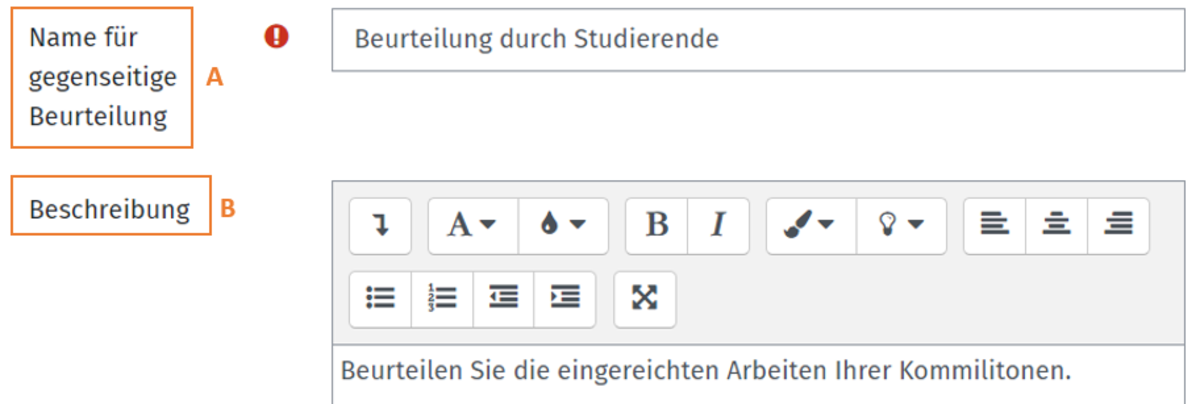
Under the General menu item, give the activity a name (A). Optionally, you can also briefly explain what the task is about under Description (B) .

Point settings


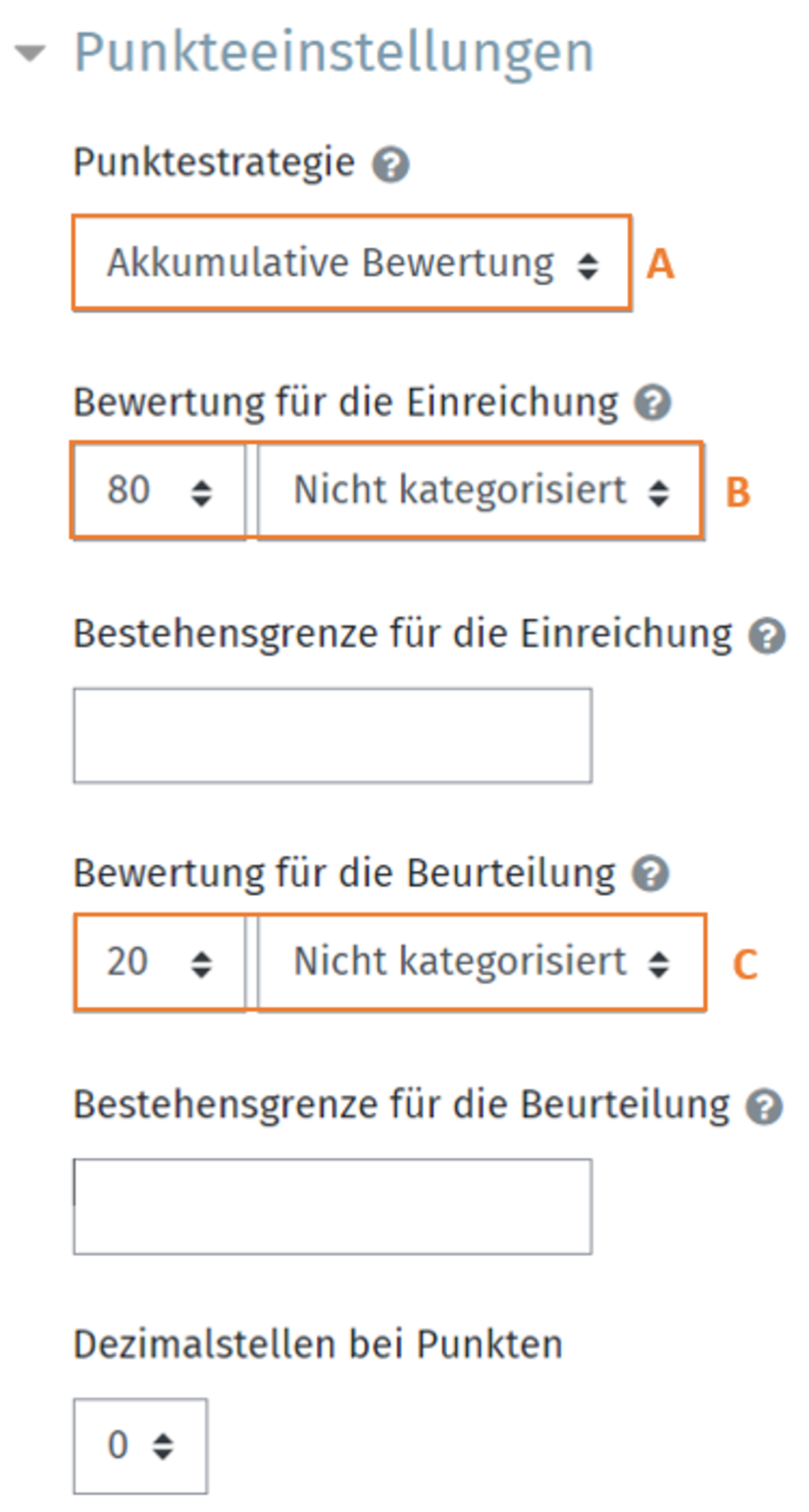
In the next menu item Point settings , you can first select a point strategy (A) . The following options are available here:

  • Accumulative evaluation: The evaluation is carried out with comments and points according to certain criteria.
  • Comments: The evaluation is based on certain criteria, but no points are awarded.
  • Number of errors: The evaluation is in the form Yes or No, i.e. Agree or Disagree. Comments can also be made.
  • Evaluation criteria: The students evaluate and weight according to certain criteria.


Participants receive one mark each for the submitted work (B) and for the quality of the assessment (C). The default settings here are 80% for the submission and 20% for the assessment. You can change this distribution as you wish. You can then set a pass mark for both assessments.

Settings Submissions

Under the Submission settings menu item, you can decide whether participants should submit the assignment in the form of an online text entry or a file attachment (A). Both are also possible here. You can then specify which file types you want to allow for submission (C), as well as the maximum number (B) and maximum size (D) of file attachments. By activating the Allow late submissions option (E), submissions can also be submitted after the specified submission deadline or during the assessment phase.

Appraisal settings and feedback

The next section is Assessment settings. Here you provide notes that the participants should follow when assessing the submissions. Detailed instructions are not yet necessary here. You can then decide whether or not participants may also assess their own submission.

In the Feedback menu item, you can activate feedback in the form of free comments from participants as optional or necessary or deactivate it completely. The feedback can be uploaded as file attachments. Here you can specify the number, size and type of file attachments. Under Conclusion, you can write a concluding text that will be displayed to participants after the assessment.

Example submissions

In the next menu item, you can activate or deactivate sample submissions . To gain practical experience in assessing, it makes sense to activate sample submissions on which participants can practise assessing each other. You can specify whether the assessment of example submissions is voluntary or mandatory and whether the example submissions can be edited before or after your own submission.

Availability

The Availability menu item allows you to automate submissions and assessments. Here you can define a time period in which the submission or assessment should take place. The system automatically switches from the submission phase to the assessment phase.

You can leave the other menu items Other settings, Prerequisites and Activity completion with the default settings.

Submission phase

You have now completed the preparation phase. To continue, click on Save and display. You will then be shown an overview of the various phases.

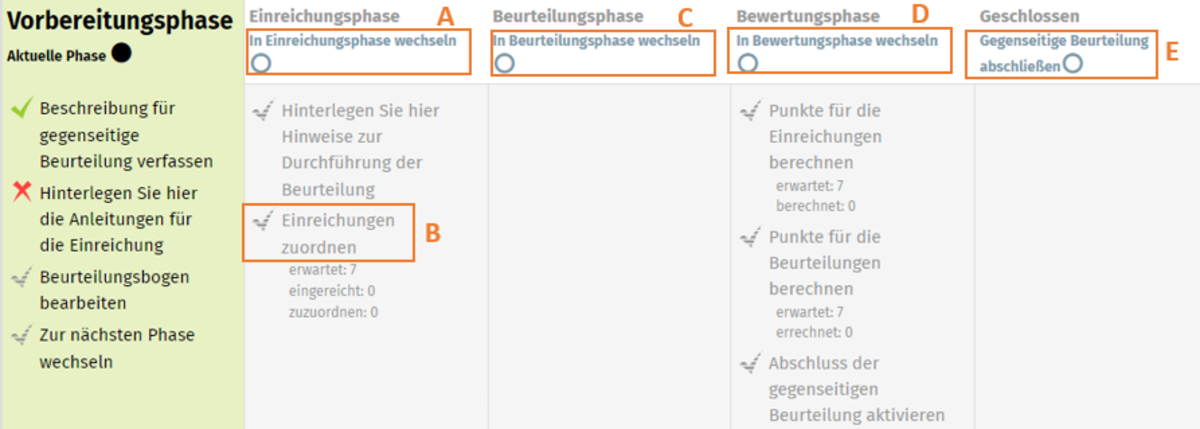
Here you can switch to the submission phase by clicking on the option Switch to submission phase (A). Alternatively, you have automated the initiation of the submission phase at a specific time in the previous point Availability .

Participants can now submit their entries during the specified period. Before you switch to the assessment phase, make the desired settings for the assignment of the submissions by clicking on Assign submissions (B). Here you can select how many assessments a person must make or how many assessments a person receives. Alternatively, you can also distribute this randomly.

Assessment phase

The submission phase is then followed by the assessment phase. You can do this manually by clicking on Switch to assessment phase (C), or you have already specified the time at which the system automatically switches to the assessment phase. During the assessment phase, students should assess the work submitted by their fellow students that has been assigned to them. You can track the activity of your students in the assessment report .

Evaluation phase

This is followed by the evaluation phase. You must switch to this phase manually by clicking on Switch to evaluation phase (D). In this phase, you determine the overall assessment for each participant. You can give individual feedback for each participant or make the work of individuals visible as an example for all course participants by clicking on the respective submission. You then have three options:

  • Download the participant's submission
  • View the assessments of the other participants
  • Give feedback to the participant and, if necessary, publish their submission

As soon as you have completed the assessment phase, click on Activate completion of mutual assessment (E). The assessment phase is then completed and all participants receive their assessment and feedback.

Help, questions, suggestions

If you need further help* on this topic, have any questions or suggestions, please feel free to contact us at any time!

*Haveyou already thought about looking for help or a solution in our help pages on these pages or in the Moodle documentation (see above or https://docs.moodle.org/)?