Question type: Drag-and-drop on image


One of the drag-and-drop question types available in Moodle that can be used for tests is 'Drag and Drop onto Image'.

This question type allows you to drag images or text into drop zones on a background image.

Here we show you how to create this.

Target group
Instructors

Objectives
Practice & testing

Further documentation
Moodle Docs: Drag and Drop onto image 

Moodle version
Article is based on
Moodle version 4.1

Author
Kathrin Osswald
kiz - Media Department
Web & Teaching Support Team

Kristina Busch & Carolin Hecht
ZLE - Center for Teaching Development

Context
Activities & resources > Quiz activity

License
This article is licensed under a Creative Commons license
All information about the license
Result

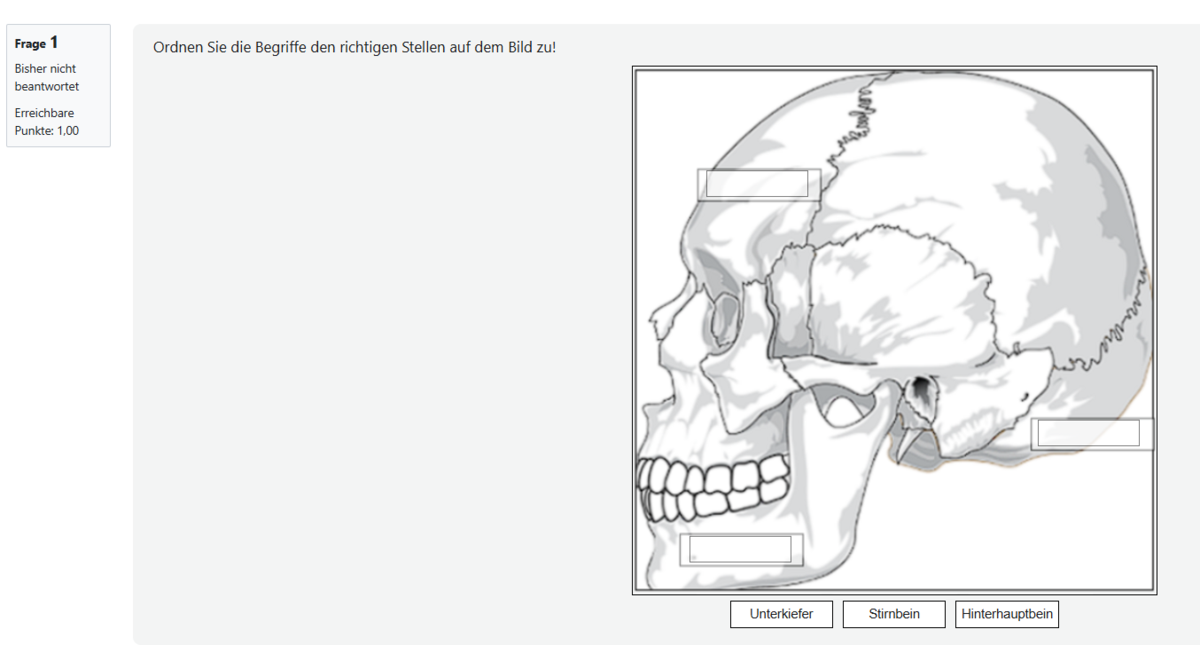
The image on the right shows the final result that the students will see later in the test (Fig. 11).

Figure 11

Set drop zones

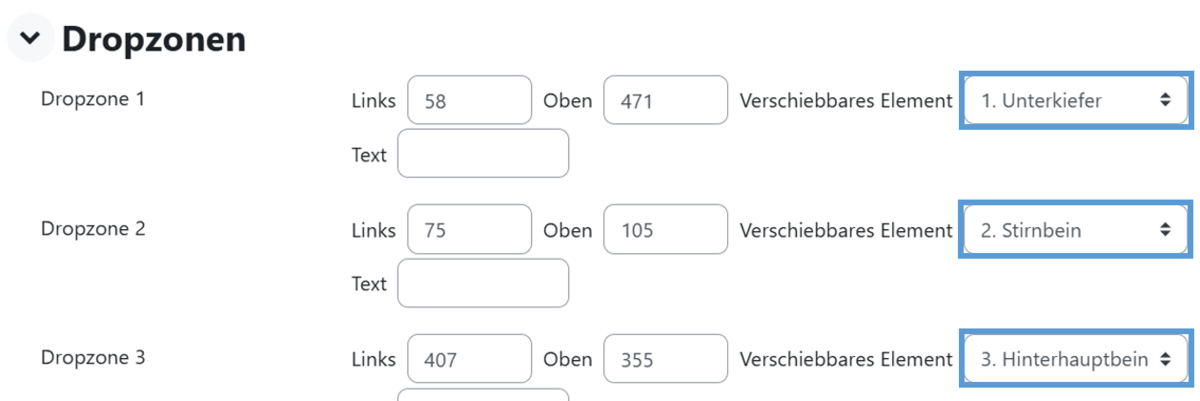
In the next menu section, ‘Drop Zones’, you can position the movable elements at specific locations on the background image.

You do not need to calculate the coordinates manually here. First, assign one of the movable elements to each drop zone. This will then appear on the background image under the ‘Preview’ drop-down menu. You can now drag the element to the desired position. The exact coordinates will then be calculated automatically (Fig. 10). Repeat the process for all other elements.

Once you have finished, save your changes.

Figure 10

Define movable elements

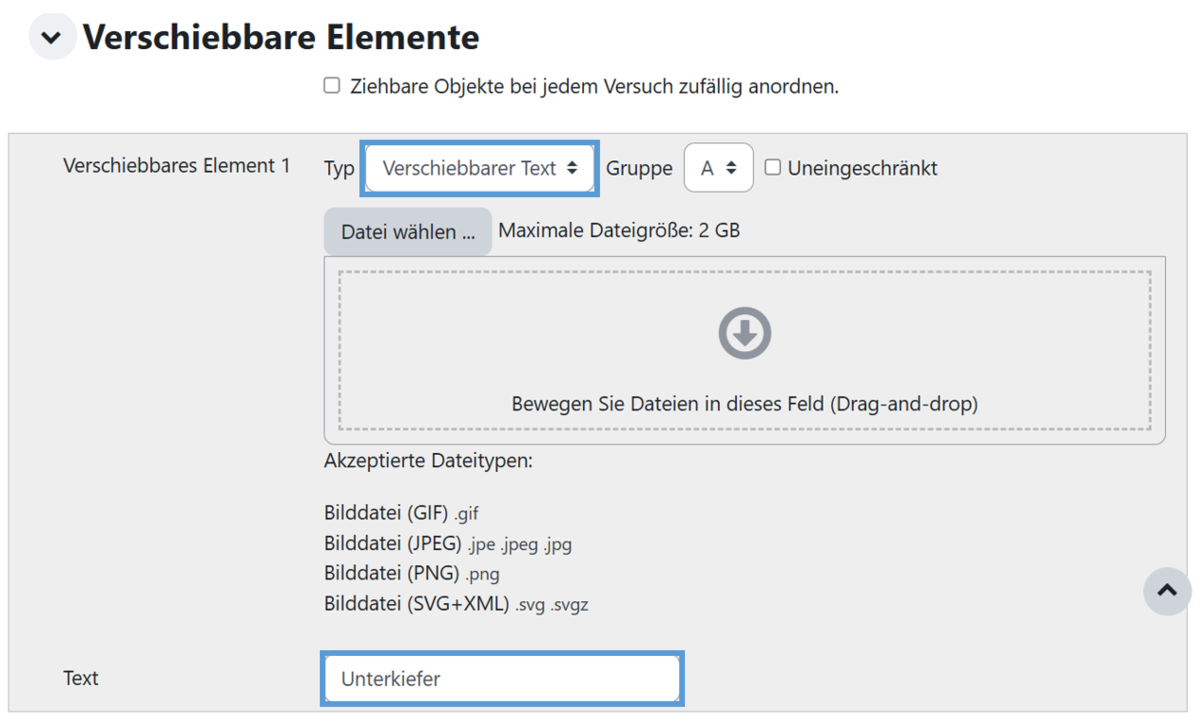
In the next section of the menu, ‘Movable Elements’, you can now create the individual elements that are to be dragged onto the background image.

You can define the type of movable element as either a Movable Image or Movable Text. In our example, the element was selected as movable text and the desired text was entered (Fig. 9).

Create as many elements as you need for your task. When you have finished, click once on the Save and continue editing button at the bottom of the page to save this progress and make it available for the next menu item.

Figure 9

Add a background image

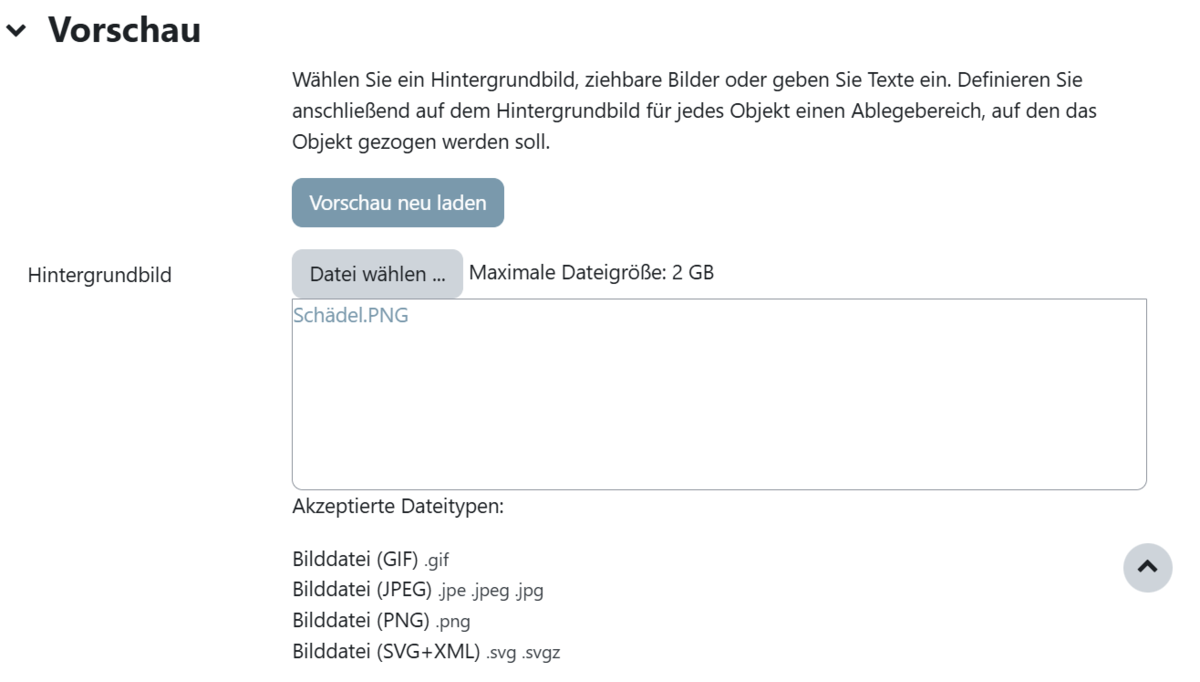
To allow students to drag elements onto an image, the image must be added to the question.

Under Preview, you can simply drag and drop the desired image into the file upload dialogue or add it using the file selection dialogue (Fig. 8). The
uploaded image will then appear under Preview.

Figure 8

Set a task

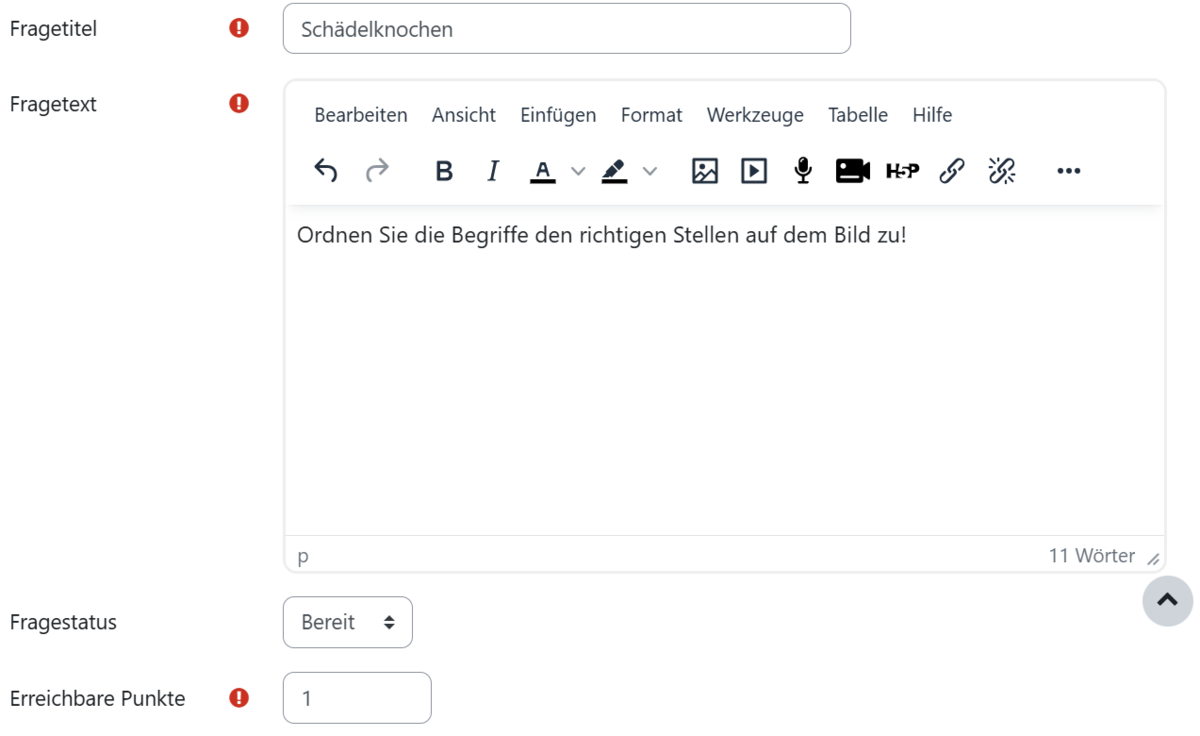
On the page that now appears, start by filling in the mandatory fields marked in red under the ‘General’ menu item (Fig. 7).

Use the ‘Question title’ field to give the question a name under which it will be listed in your questionnaire.

In the ‘Question text’ field, enter the instructions for your students. This is the task text.

Set the number of marks to be awarded for this task.

Figure 7

Prerequisite test

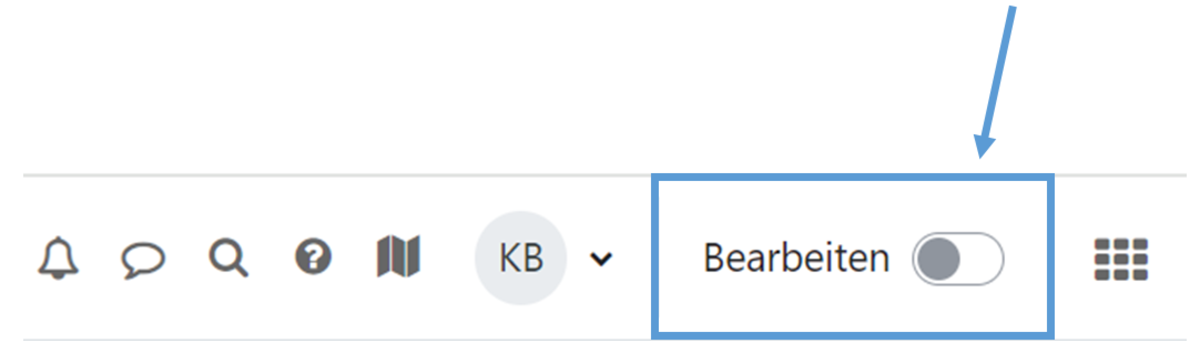
To add the 'Drag-and-Drop on Image' question type to a test, you must first create a 'Test' activity within the course. To do this, switch to edit mode (Fig. 1).


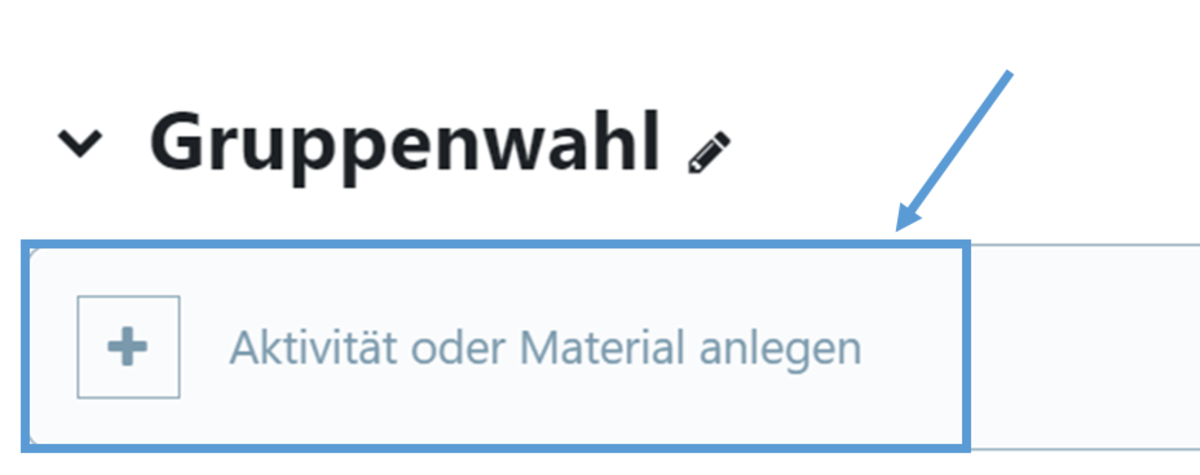
Create the Test activity by first clicking on Create activity or materials (Fig. 2) and then selecting Test (Fig. 3). Then enter a name for the test and save.


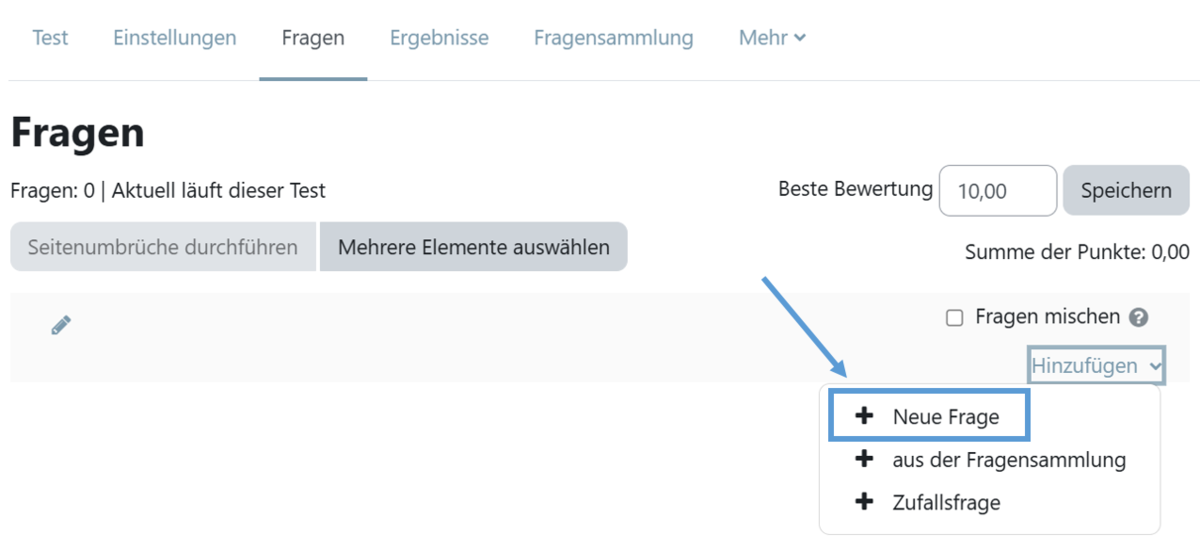
Once this is done, please go to the page where you can edit the test content and select Add question (Fig. 4). You will then be redirected to a page where you should click Add again and then New question (Fig. 5).


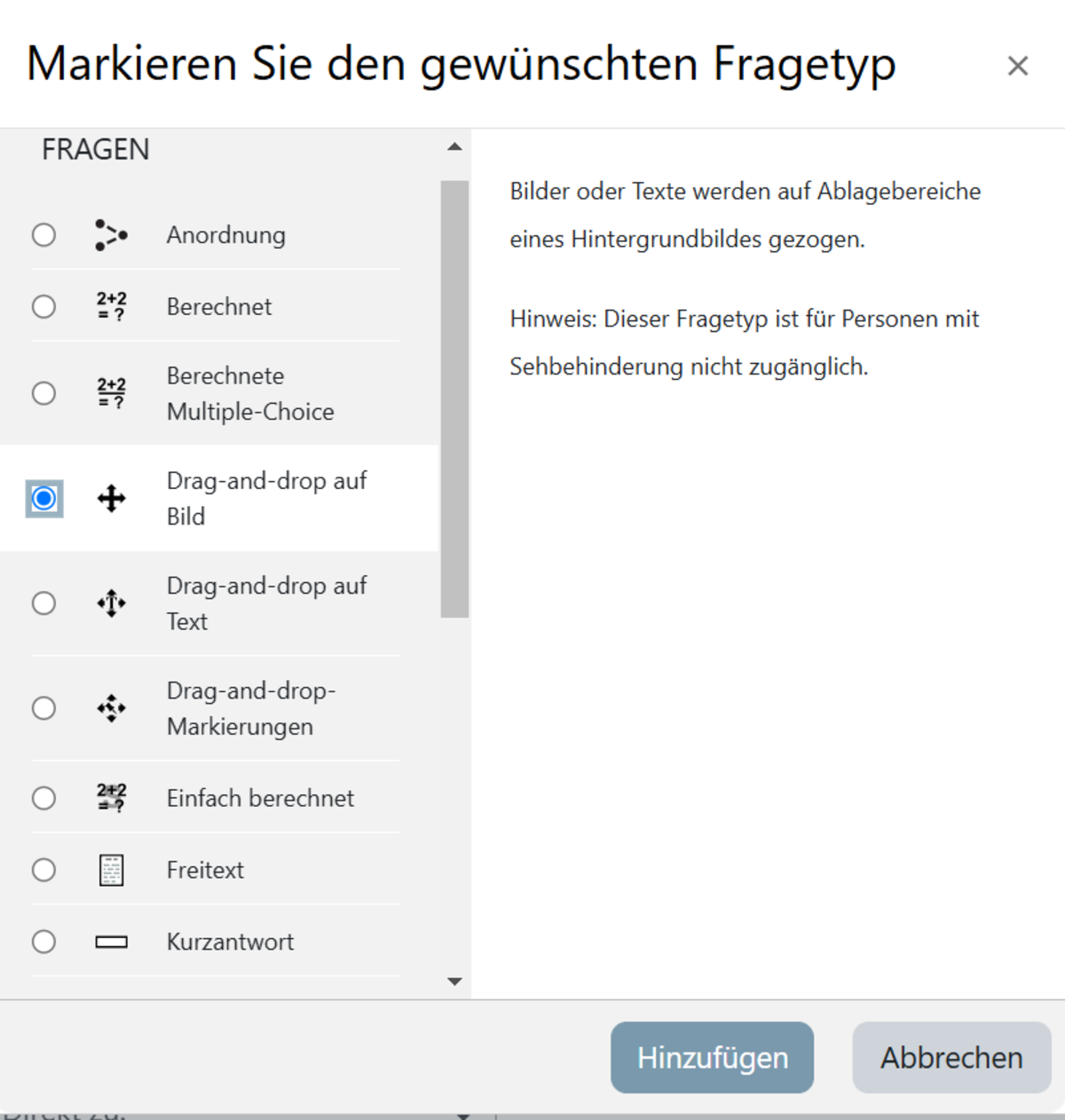
In the selection dialogue that appears, select the question type ‘Drag-and-drop on image’ and confirm by clicking the ‘Add’ button (Fig. 6).

Figure 1
Figure 2
Figure 3
Figure 4
Figure 5
Figure 6

Help, questions, suggestions

If you need further help* on this topic, have any questions or suggestions, please feel free to contact us at any time!

*Haveyou already thought about looking for help or a solution in our help pages on these pages or in the Moodle documentation (see above or https://docs.moodle.org/)?