Activity Moodleoverflow


This activity, which will be available in Moodle from the 2018 summer term, is a Q&A-style forum. The difference from the existing forum in Moodle – which you can also set up as a Q&A forum – is the way posts are sorted.

In this forum, posts are displayed according to their rating rather than in chronological order.

The model for this is the website stackoverflow.com, from which the name of the activity is also derived.

We would like to introduce this activity to you in this article.

Target group
Instructors

Objectives
Communicating & Interacting

Moodle version
Article is based on
Moodle version 3.4

Author
Kathrin Osswald
kiz - Media Department
Web & Teaching Support Team

Context
Activities & resources

License
This article is licensed under a Creative Commons license
All information about the license


Prerequisite: Edit mode

To add the activity to your course, please switch the course to edit mode by clicking the ‘Edit’ button in the header (Fig. 1).

Figure 1

Create a Moodleoverflow account

Then, in the section where you want to add the activity, click on ‘Add resource’ or ‘Add activity’ (Fig. 2)

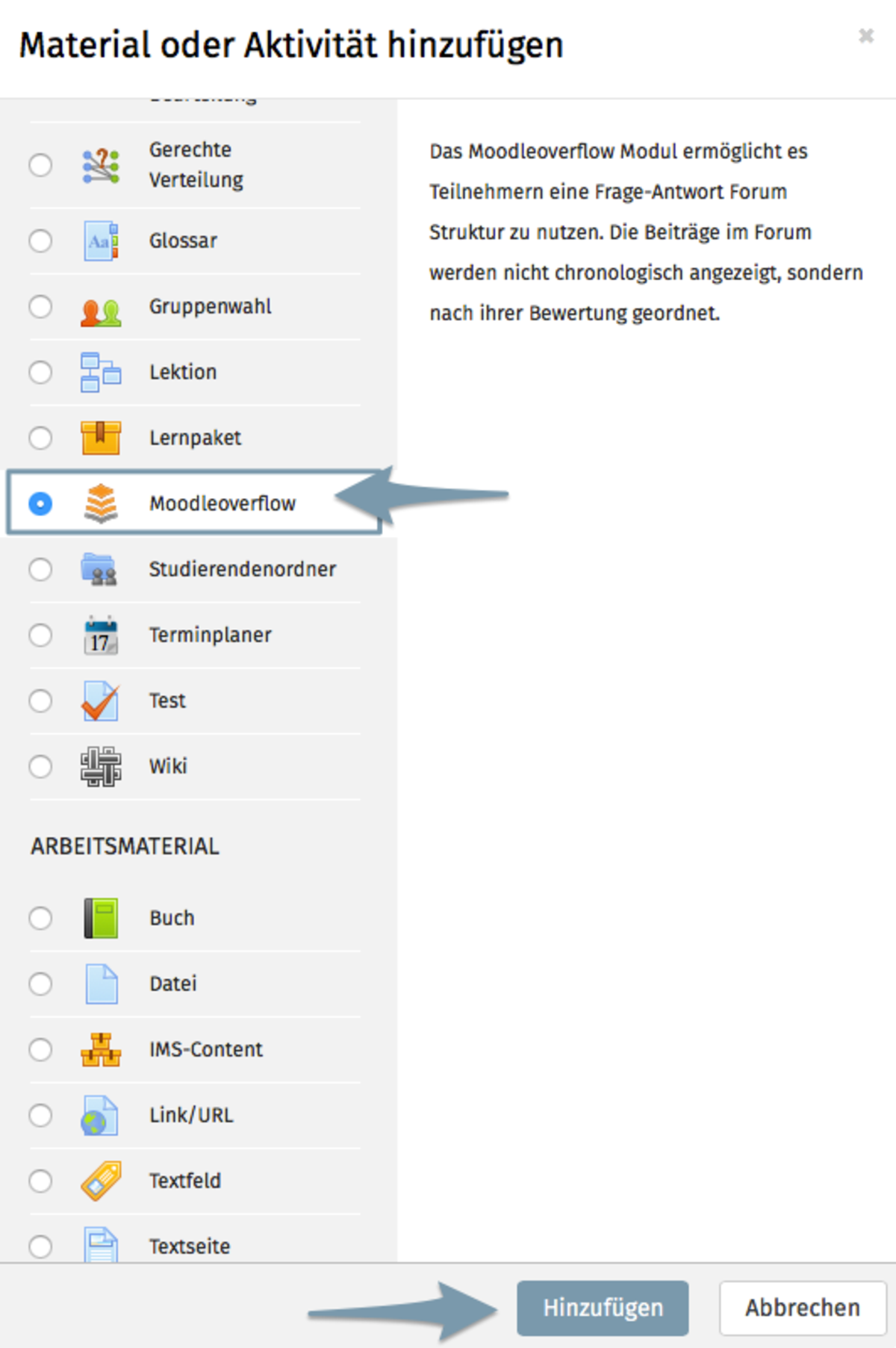
In the window that opens, select ‘Moodleoverflow’ and then click on ‘Add’ (Fig. 3).

Figure 2
Figure 3

Set preferences

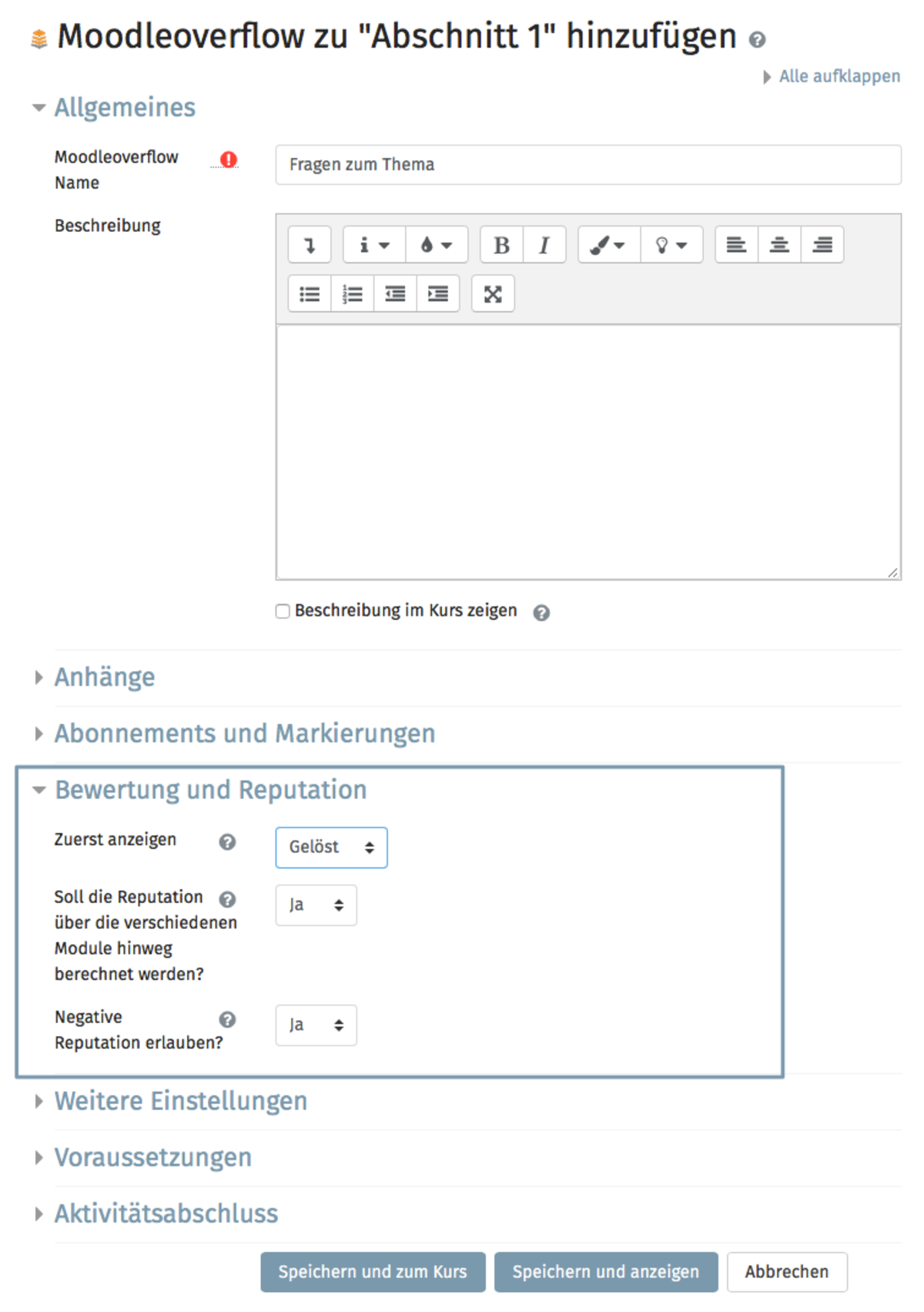
In addition to the usual details such as the name of the activity and an optional description, this activity has specific settings. These are shown in Figure 4 and can be found in the ‘Rating and Reputation’ section.

We will now go through the three settings one by one:

Show first

In this activity, answers can be marked as ‘particularly helpful’ by the questioner themselves and as ‘resolved’ by you as the lecturer. With this setting, you can choose between these two options and thus determine which of the marked posts is always displayed as the first post directly below the question.

Should reputation be calculated across the various modules?

One concept of this forum is that participants can earn reputation. Every action, e.g. upvoting an answer, gives the author of the post a higher reputation. If you have placed several Moodleoverflow activities in your course, you can use this setting to decide whether the reputation earned should also be retained and displayed in the other Moodleoverflow forums within the same course. If you select ‘No’ here, each student will accumulate reputation separately in each of the forums.

Allow negative reputation?

Reputation can also decrease, as participants can vote on posts not only up but also down. For example, if an answer was not helpful at all, completely wrong or perhaps even dangerous. This downvote is associated with a negative reputation. 

Here you specify whether students’ reputation in the activity can go into negative territory, or whether the minimum reputation should be set to zero.

Info

AktionReputation
Bewertung eines Beitrags1
Positive Bewertung für einen Beitrag erhalten5
Negative Bewertung für einen Beitrag erhalten-5
Ein Beitrag wird als "gelöst" markiert30
Ein Beitrag wird als "hilfreich" markiert15
Figure 4

New topic in the forum

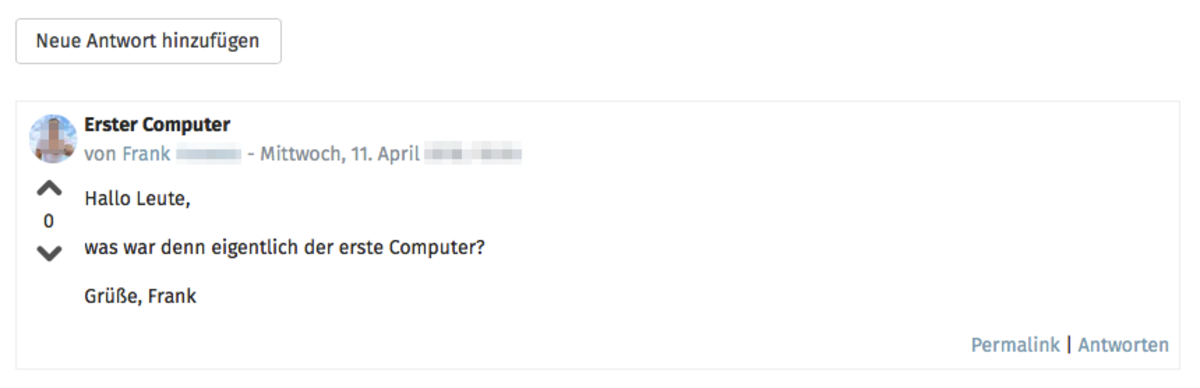
In our example, the student Frank uses the forum to post a question for the general public (Fig. 5).

As shown in Figure 6, this topic appears in the topic overview for another student who has not yet seen the new post.
The topic’s status has not yet been set; there are no replies and no ratings for the question.

Figure 5
Figure 6

Receive replies and mark a reply as resolved

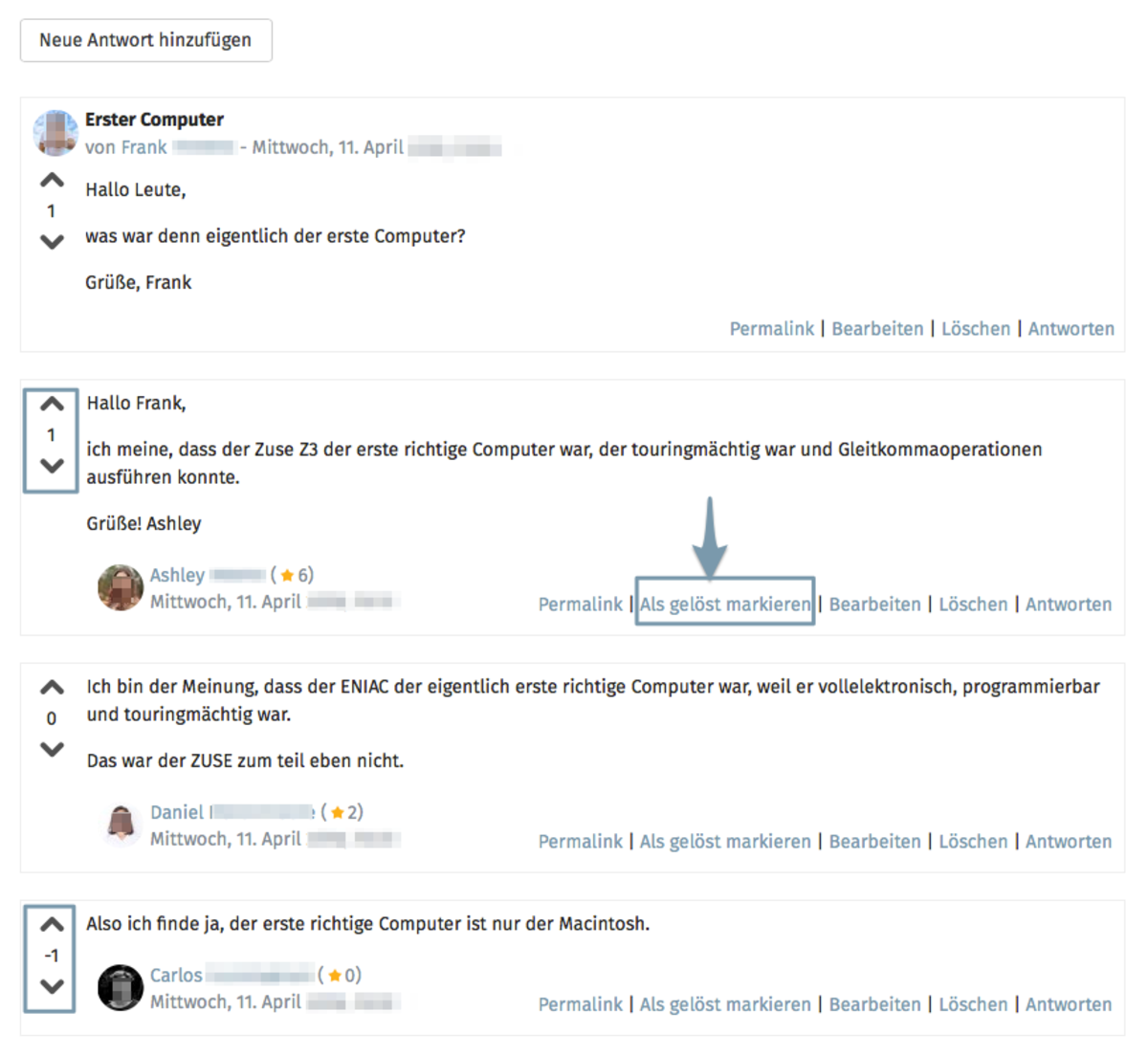
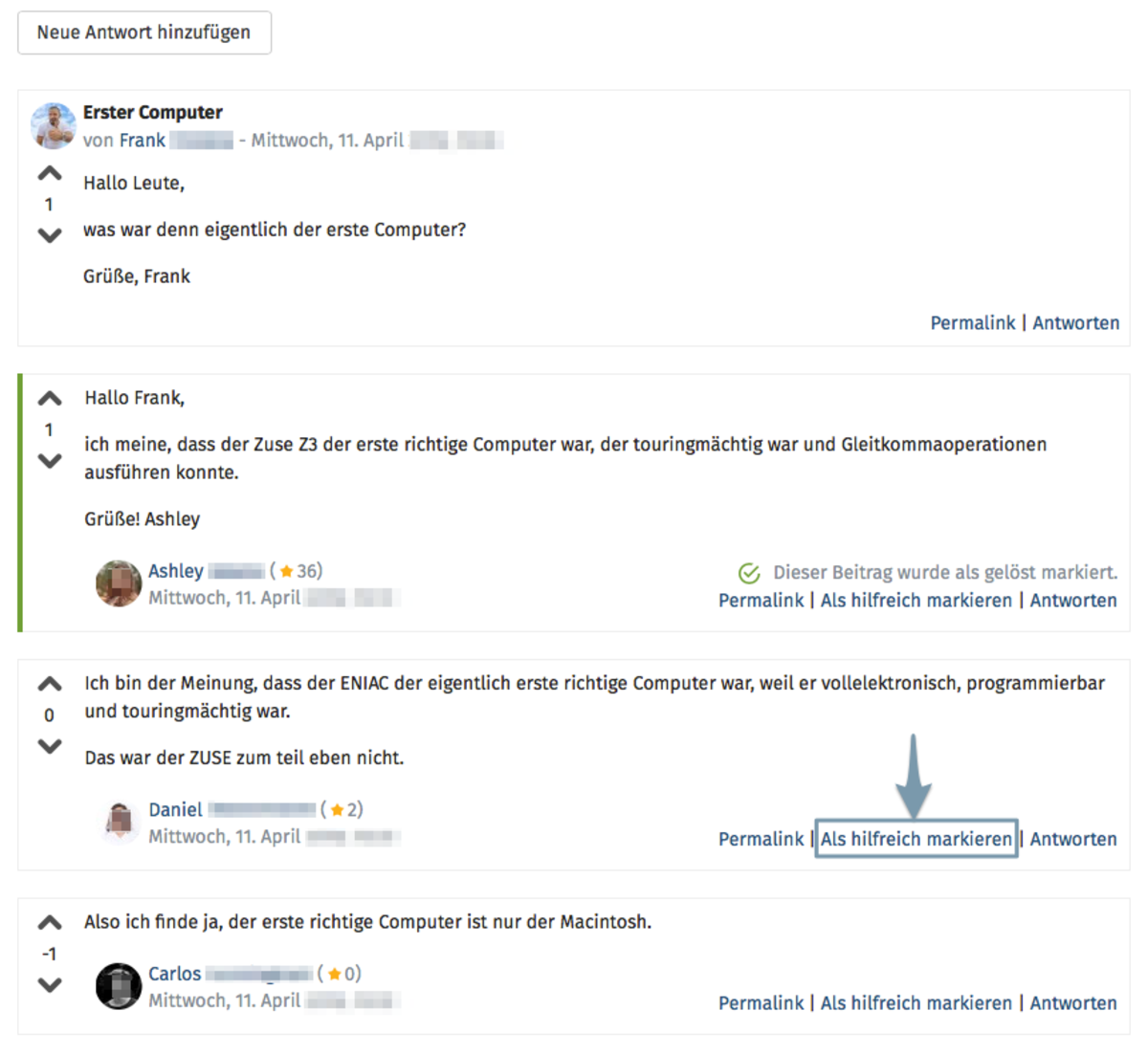
As can be seen in Figure 7, Frank’s question received three answers.

However, the students were also active in other ways, such as rating posts. This can be seen, for example, in Figure 7 with the student Ashley. A participant found her answer so good that they gave it a positive rating. For this, she received 5 reputation points. In total, she currently has 6 points, because she herself has also rated another post.

On the other hand, we see a downvote on Carlos’s answer, as the answer was apparently not very suitable for the question and did not help the person who rated it. Here we see that he still has 0 reputation, even though he would have received -5 points for the rating he received. However, we have set our settings so that students cannot receive negative final reputations.

Mark answer as solved

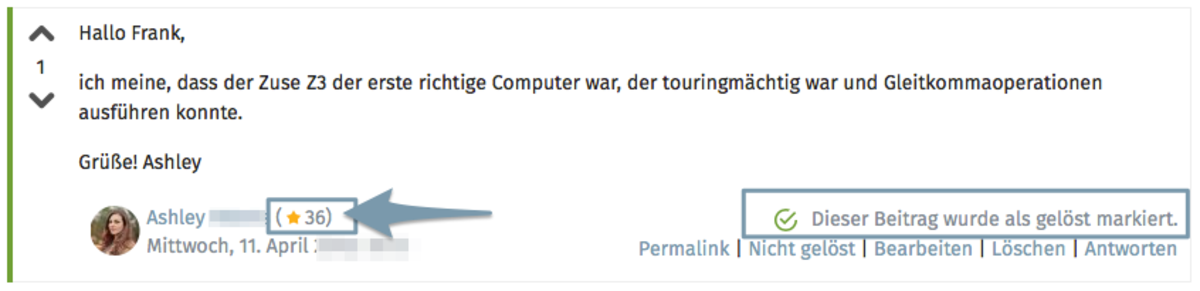
As a lecturer, you have the option to indicate that an answer resolves the question asked. You do this by clicking on the ‘Mark as solved’ link next to the relevant answer (Fig. 7). The post then changes as shown in Figure 8. It is visually marked with a green line and a label stating ‘This post has been marked as solved’. In addition, compared to the previous status, Ashely’s reputation has increased further as a result.

Figure 7
Figure 8

Mark an answer as helpful

The person who asked the question, and only they, also have the option of marking an answer as helpful. The answer marked as helpful can also be the one that the lecturer has marked as resolved, but these do not have to be the same. There may well be cases where an answer is correct in principle, but another answer has simply been more helpful to the questioner.
To demonstrate this, in our example Frank marks another answer as helpful by clicking on the ‘Mark as helpful’ link next to the answer he found helpful (Fig. 9).

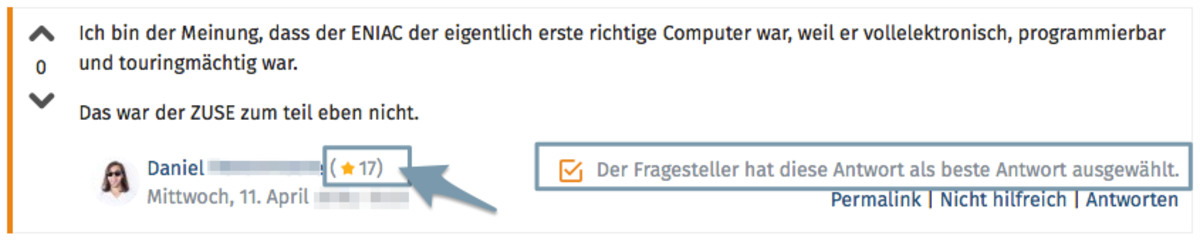
The result is then similar to the option to mark a question as solved. It is marked with a coloured bar and a label stating ‘The questioner has selected this answer as the best answer’ (Fig. 10).
In addition, the answerer has subsequently regained reputation.

Figure 9
Figure 10

Subject overview (new)

Compared to the start (Fig. 6), both status options are now selected for the question Frank asked, and there is now a rating and three replies on the topic (Fig. 11)

Figure 11

Help, questions, suggestions

If you need further help* on this topic, have any questions or suggestions, please feel free to contact us at any time!

*Haveyou already thought about looking for help or a solution in our help pages on these pages or in the Moodle documentation (see above or https://docs.moodle.org/)?

Lizenz

Creative Commons license agreement 
Texts and images in this article are licensed under the Creative Commons license CC BY 4.0

Attribution when reused:
"Moodleoverflow activity" by Kathrin Osswald (University of Ulm), licensed under CC BY 4.0