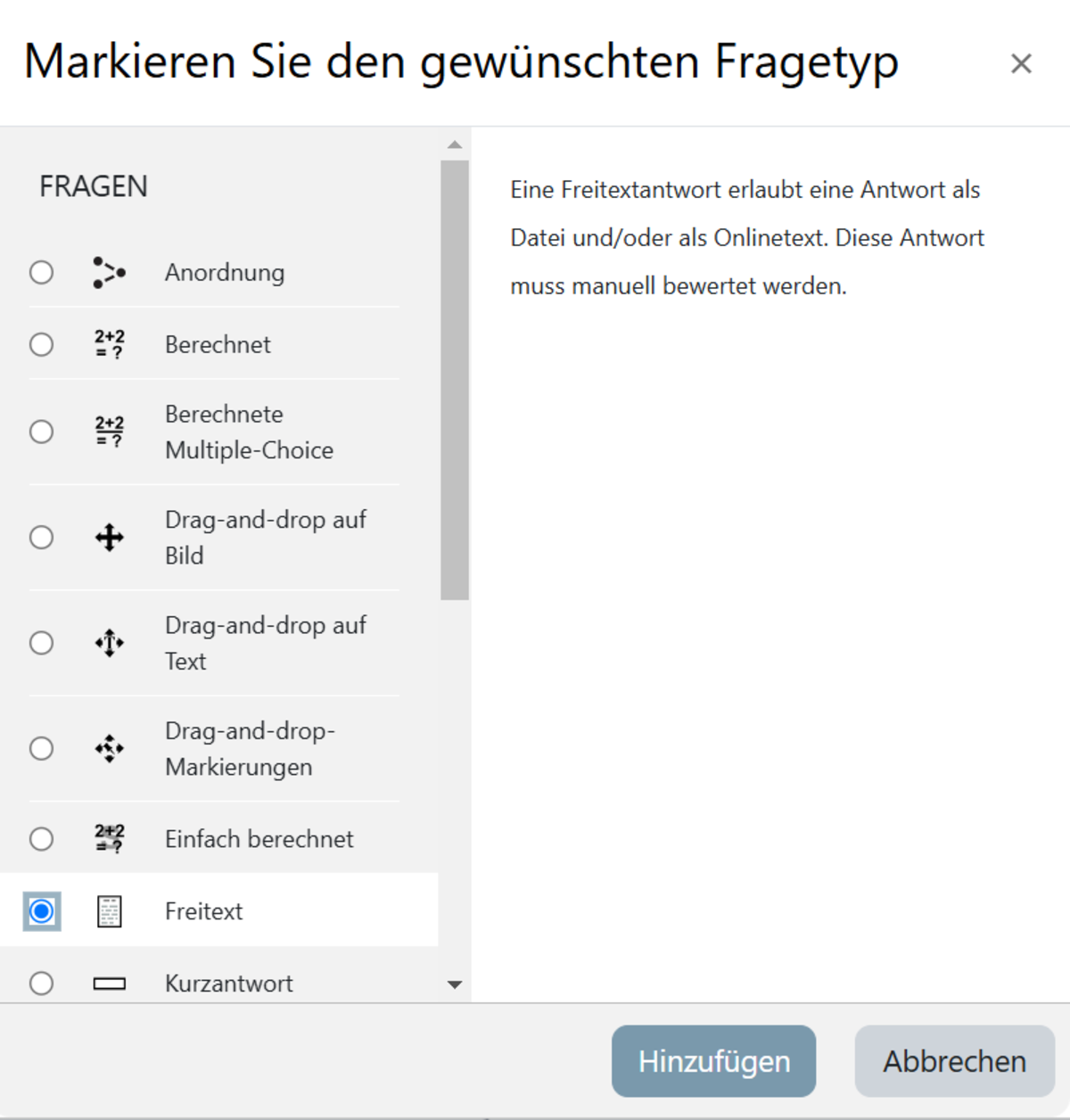
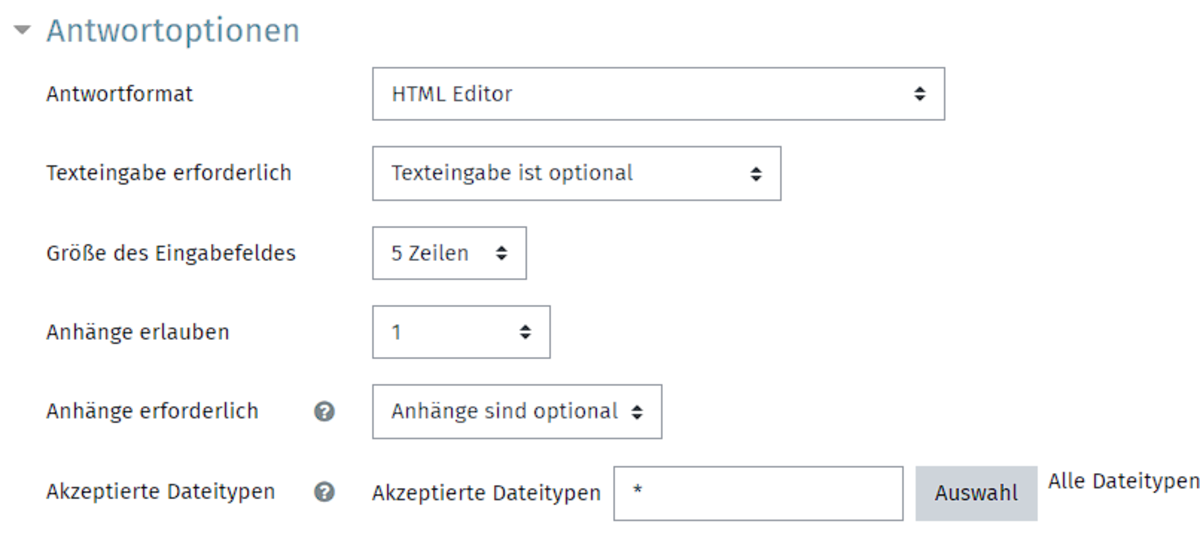
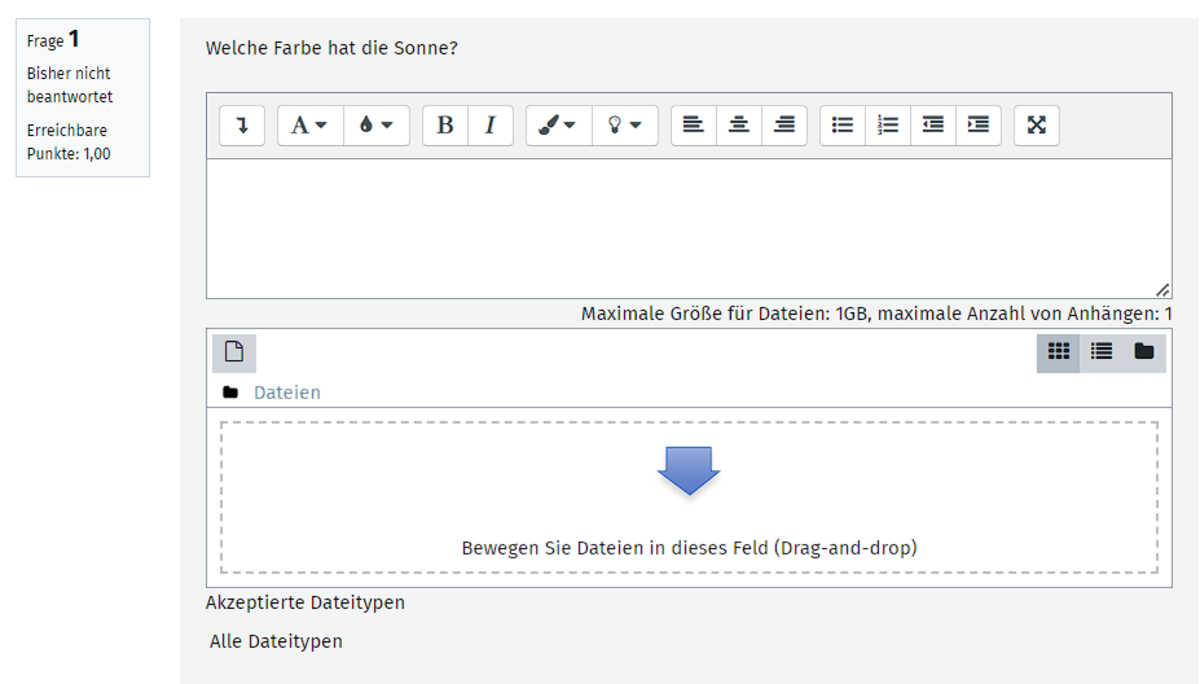
In the next section, ‘Answer options’, you can configure various settings that determine how the question can be answered (Fig. 8). First, under ‘Response format’, you can choose between the following options: HTML Editor, HTML Editor with file selection, unformatted text, unformatted text with monospaced font, or no online text.
You can then specify whether participants must enter text or whether this is optional. If participants are only required to upload an attachment, select ‘Text entry is optional’ here.
The size of the input field determines how many lines the input field should contain. The minimum size is five lines; a maximum of 40 lines is possible. In the next section, you can specify whether attachments are permitted and, if so, how many. If you allow attachments, you can also determine whether they are required, so that the assignment is displayed as assessable. If you allow attachments upon submission, you should also specify the permitted file types.
In the Answer Template section, you can create a template which will then be displayed in the text field as a template for participants answering the question.
In the 'Marker Information' section, you can enter information about the marking that you wish to communicate to participants for this question.
Free-text questions must be marked manually by the course instructor; otherwise, the question will be marked with zero points.