Activity: PDF Editor


Moodle allows you to annotate a submitted assignment—which has already been submitted as a PDF or in an Office file format—directly within that document online. This means you do not need to download the submissions separately, add comments in your own software, and then upload the corrected version back to the relevant student. All of this can be done within Moodle using an integrated interface.

Target Audience
Lecturers

Objectives
Practice & Testing

Further Documentation
Moodle Docs: Annotating submissions

Moodle Version
Article based on Moodle version 3.7

Author
Kathrin Osswald
kiz - Media Department
Web & Teaching Support Team

Context
Activities & Materials > Activity Task

License
This article is licensed under a Creative Commons license.
All information about the license
The appearance

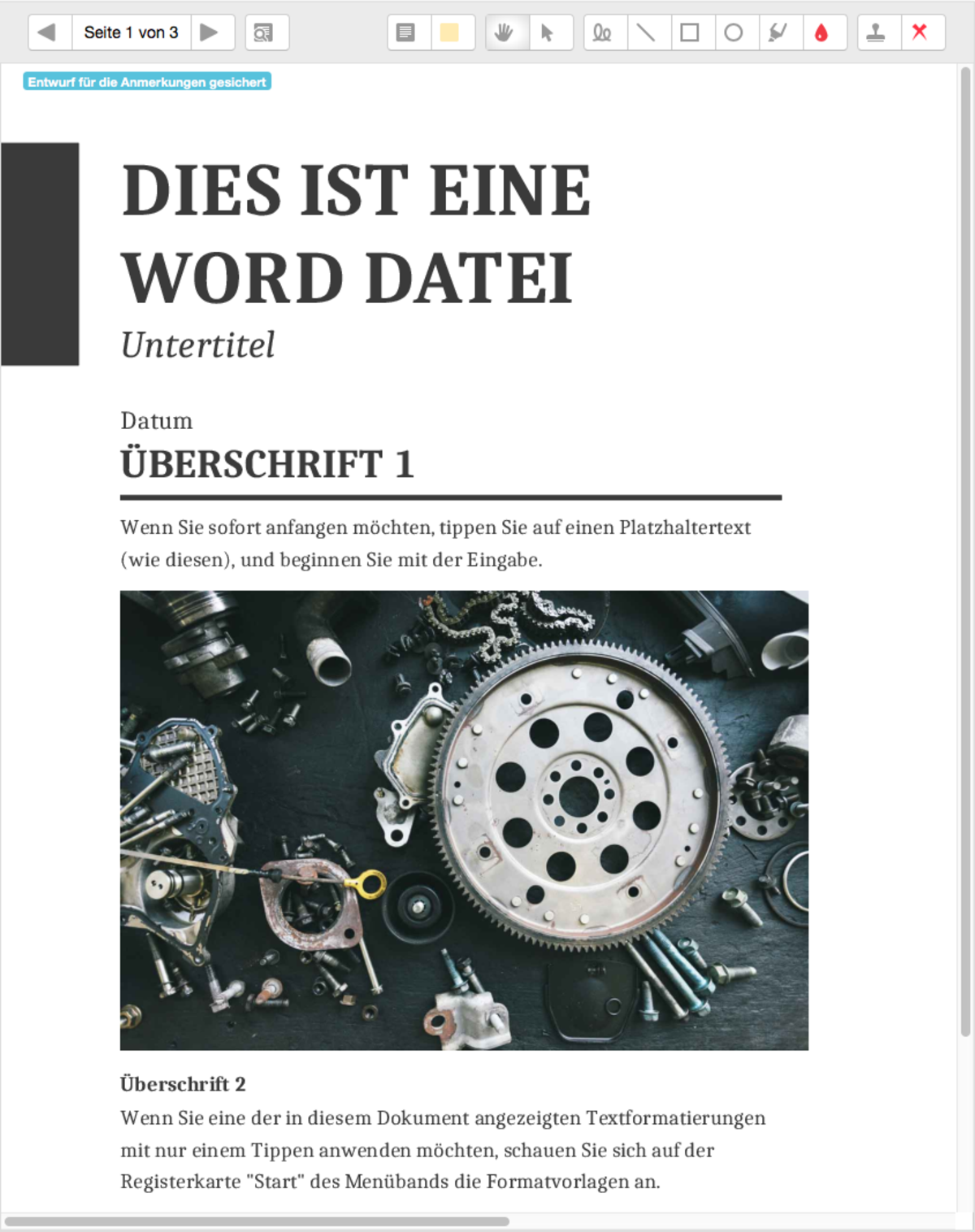
First of all, here is what the editor looks like (Fig. 1).

It consists of a header and a content area. The header contains all the necessary interactive elements, such as the navigation bar and the toolbar.

Figure 1

navigation bar

The navigation bar is located on the left-hand side of the header. Here, you can see which page you are currently on and how many pages the PDF file contains (for example, page 1 of 3).

You can then use the arrows to scroll through the document page by page.

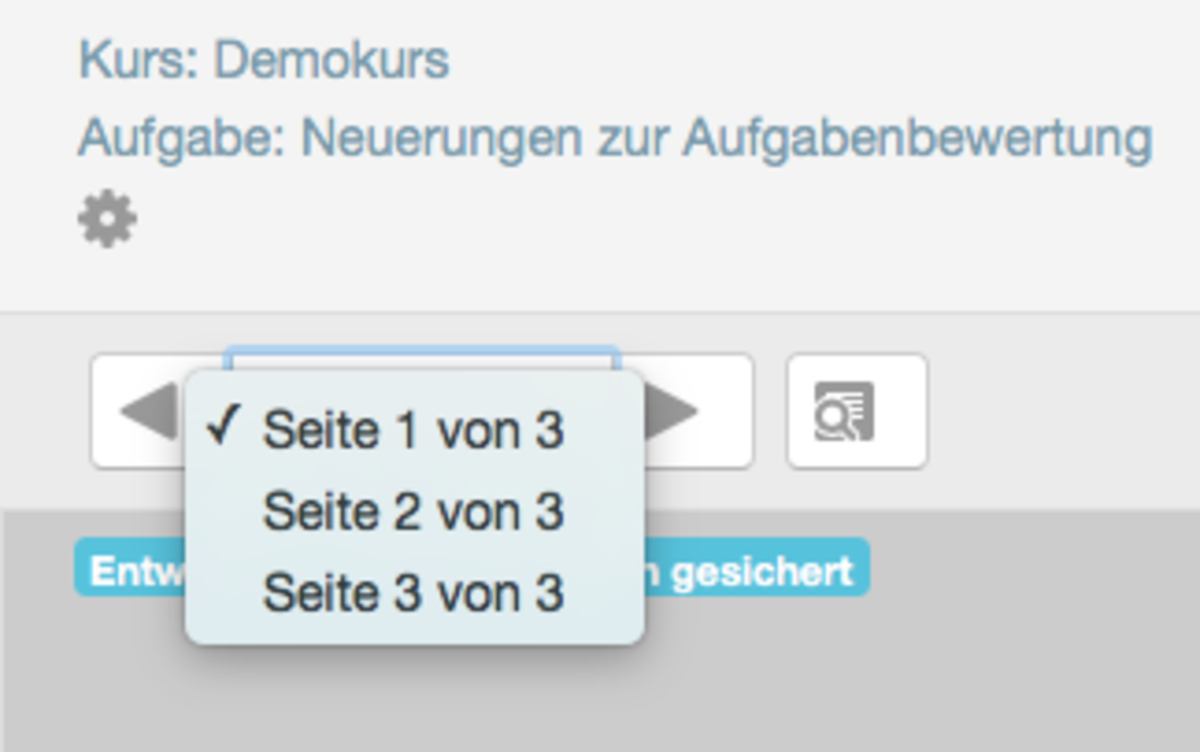
If you wish to go directly to a specific page, simply click on the page information in the middle. A context menu will then appear listing all the pages (Fig. 2), and you can select the page you wish to view directly from there.

Figure 2

Help, questions, suggestions

If you need further help* on this topic, have any questions or suggestions, please feel free to contact us at any time!

*Haveyou already thought about looking for help or a solution in our help pages on these pages or in the Moodle documentation (see above or https://docs.moodle.org/)?

Productivity booster

Quick templates

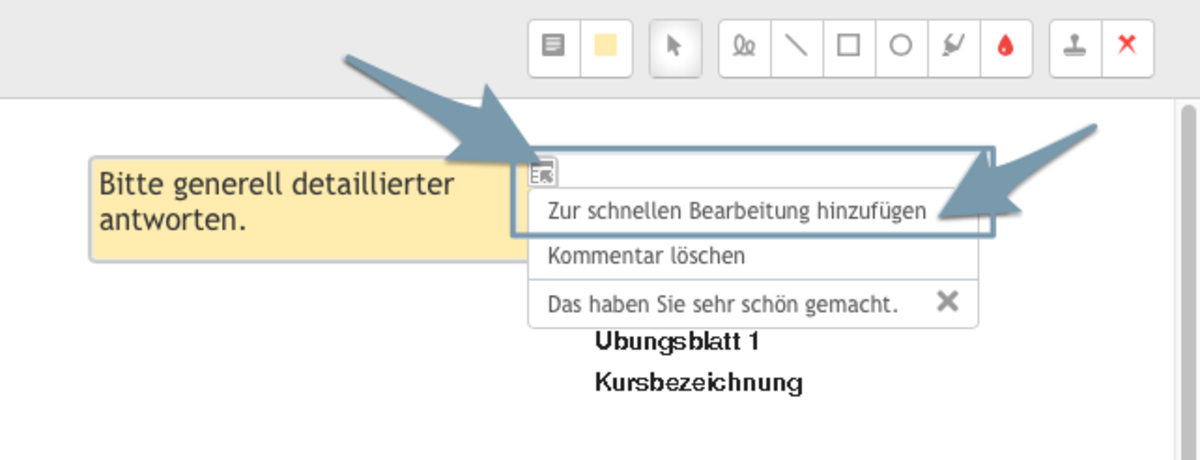
For example, you can save frequently used comments as quick templates. These can then be added with just a few clicks. This means you don’t have to type out text blocks manually or insert them using copy and paste every time.

To do this, simply click on the icon in the top-right corner of a comment you are creating. A context menu will then open. Simply select the option ‘Add to quick edit’ (Fig. 4).
In Figure 4, you can also see that a comment has already been saved as a quick template.

Figure 4

Stamping tool

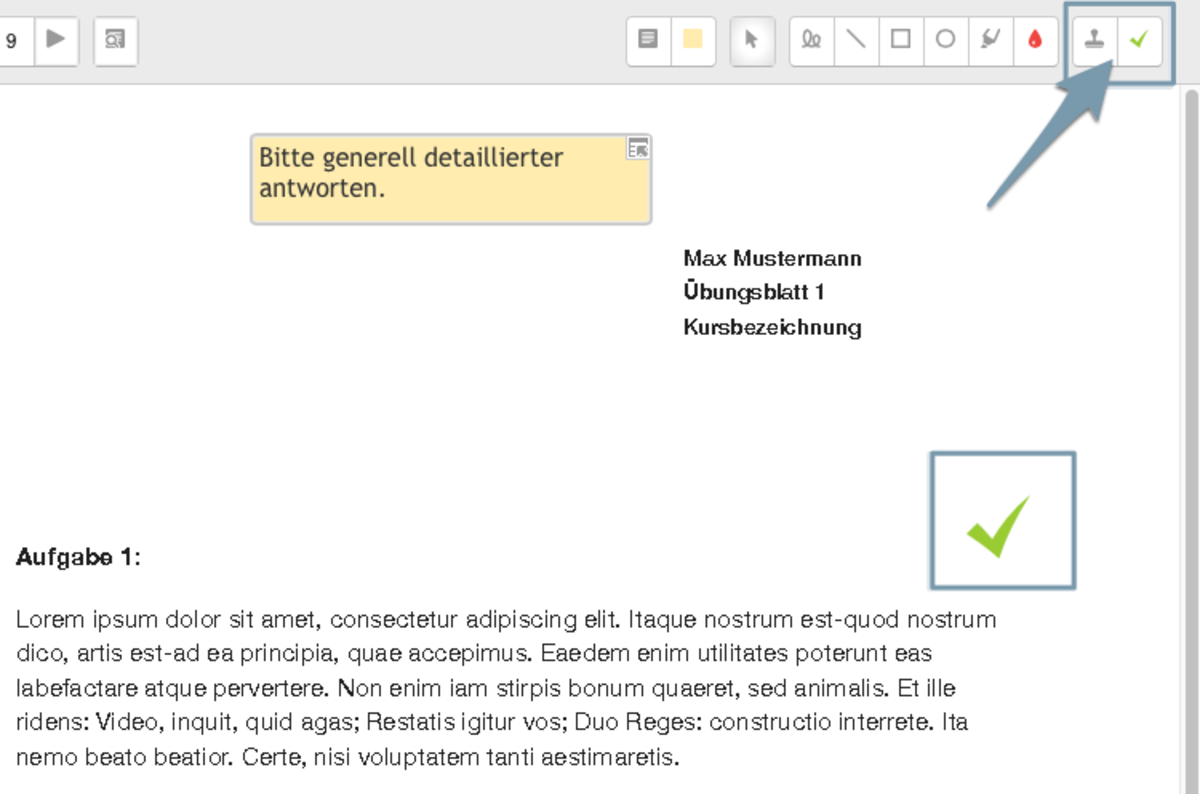
The stamp tool is particularly useful for corrections where you simply want to tick off individual items or mark them as incorrect (Fig. 5).

You can see the available stamps in Figure 6.

Figure 5
Figure 6

toolbar

On the right-hand side of the header, you will find the toolbar (Fig. 3).
This allows you to add annotations to the PDF. 

This bar contains the following tools:

  • Rotate anti-clockwise
  • Rotate clockwise
  • Add comment boxes
  • Change colour of comment boxes
  • Move
  • Freehand drawing
  • Draw lines
  • Draw rectangles
  • Draw circles
  • Select text
  • Change annotation colour
  • Stamp tool
Figure 3