Question type: Drag-and-drop on text


One type of question available in Moodle that can be used for tests is ‘drag-and-drop into text’.

As there are various drag-and-drop question types in Moodle, we would like to introduce these to you and explain how to create them.

This question type allows you to insert missing words into the text using drag-and-drop.

Target group
Instructors

Objectives
Practice & testing

Further documentation
Moodle Docs: Drag and Drop into text 

Moodle version
Article is based on
Moodle version 4.1

Author
Kathrin Osswald
kiz - Media Department
Web & Teaching Support Team

Kristina Busch & Carolin Hecht
ZLE - Center for Teaching Development

Context
Activities & resources > Quiz activity

License
This article is licensed under a Creative Commons license
All information about the license
Option: Do not group selections

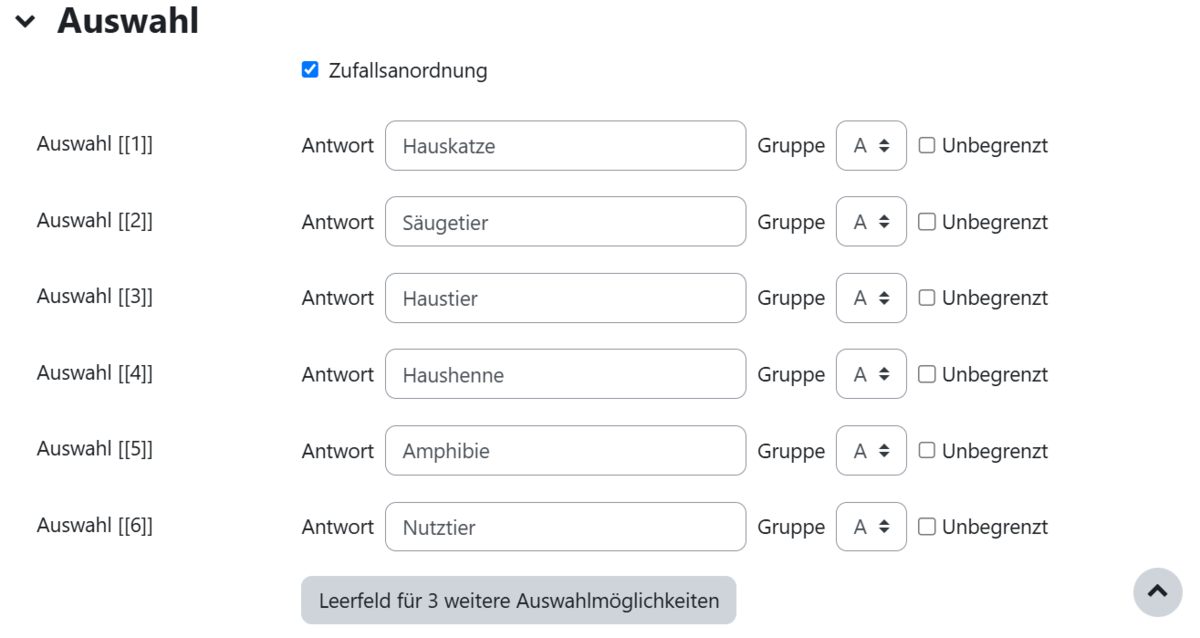
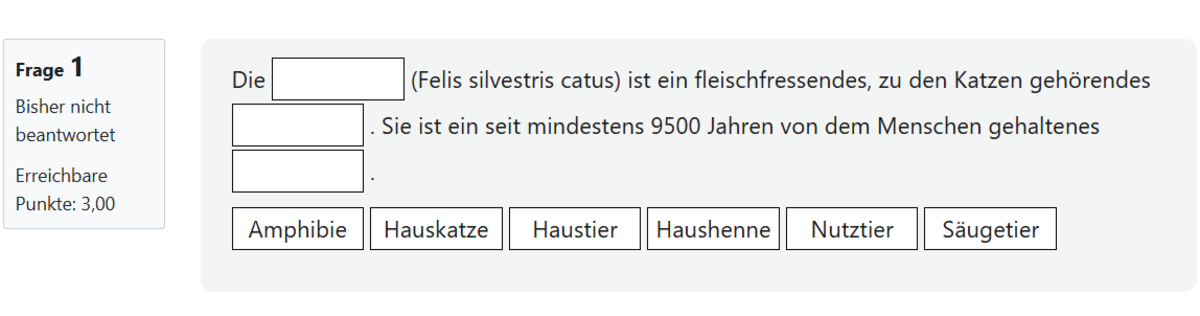
If you simply wish to provide answer options without the student being able to match them to a specific gap, follow the procedure described above, but set the group for all options to A (Fig. 10). Figure 11 shows the result when you do not group the options.

Figure 10
Figure 11

Option: Group solutions

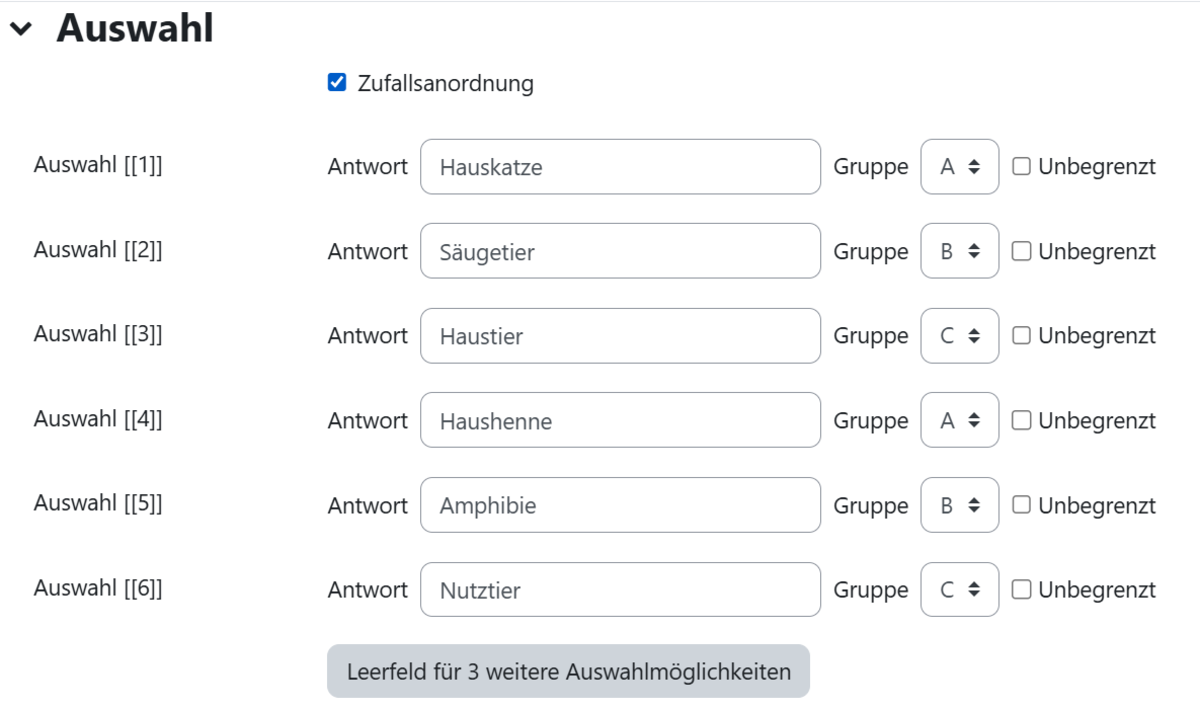
If you want possible solutions to be grouped for a gap – i.e. for several possible solutions to be listed – you must set the relevant options in the next menu section, ‘Selection’:

First, enter the correct solutions for the gaps, ensuring they correspond to the gap numbering in the text. This means that gap [[1]] contains the correct solution in the Selection [[1]] field.

Now specify a corresponding grouping behind the text field. This determines which terms are available for selection together for a gap. For example, only the terms in Group A can be assigned to gap [[1]].

Once all the correct answers have been entered, enter the other – naturally incorrect – answer options as the next choices and group them accordingly (Fig. 8).

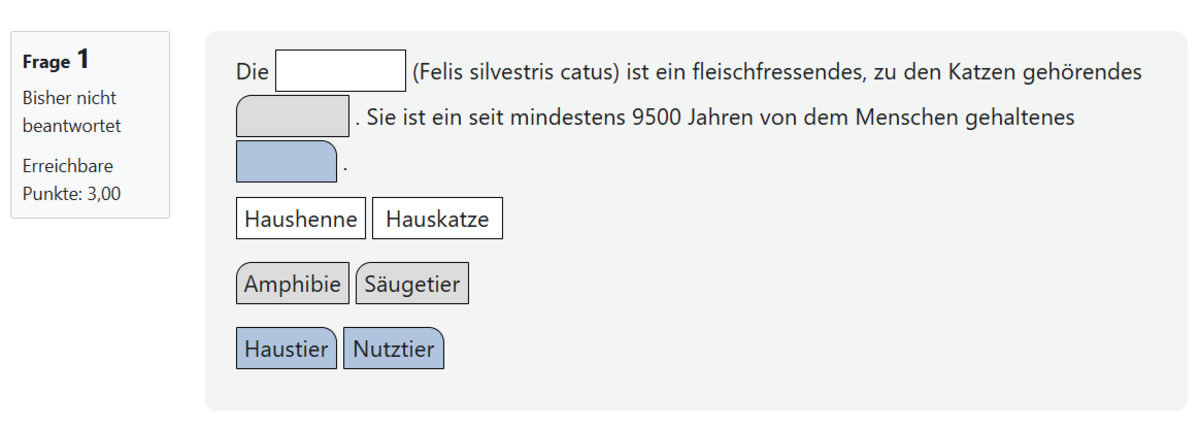
In the test, our example appears as shown in Figure 9.


Figure 8
Figure 9

Set a task

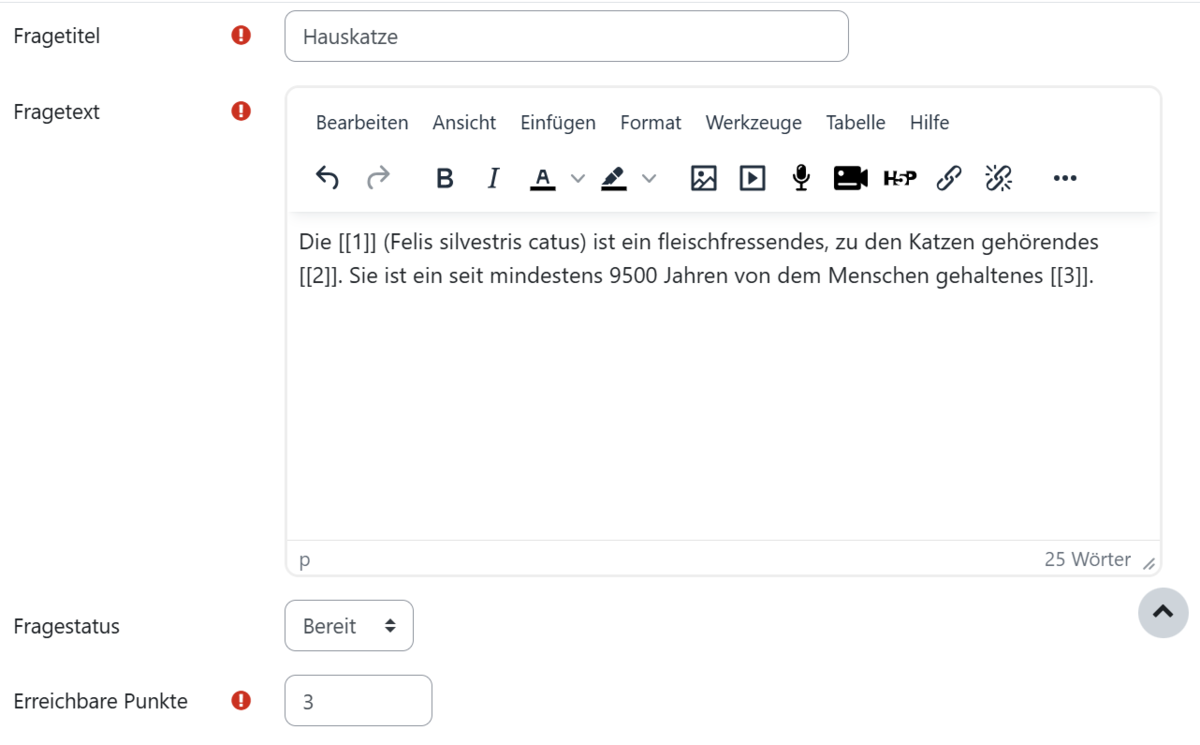
On the page that now appears, start by filling in the mandatory fields under the ‘General’ menu item. These are marked with a white exclamation mark inside a red circle (Fig. 7).

Use the ‘Question title’ field to give the question a name under which it will be listed in your question catalogue.

In the ‘Question text’ field, enter the cloze text to be completed by the students. Define the required gaps using two opening and two closing brackets. Number the gaps in ascending order. The first gap would then be marked with [[1]].

Finally, set the number of marks to be awarded for this task.

Figure 7

Prerequisite: Test

To add the ‘Drag-and-Drop on Text’ question type to a test, you must first create a ‘Test’ activity within the course. To do this, switch to edit mode (Fig. 1).


Create the Test activity by first clicking on Create activity or materials (Fig. 2) and then selecting Test (Fig. 3). Then enter a name for the test and save.


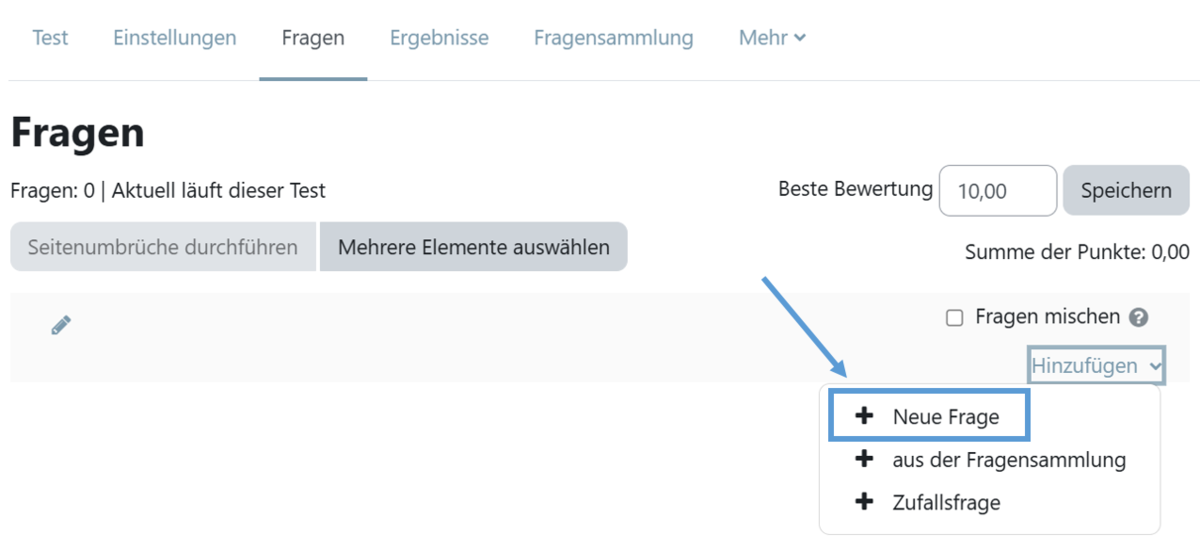
Once this is done, please go to the page where you can edit the test content and select Add question (Fig. 4). You will then be redirected to a page where you should click Add again and then New question (Fig. 5).


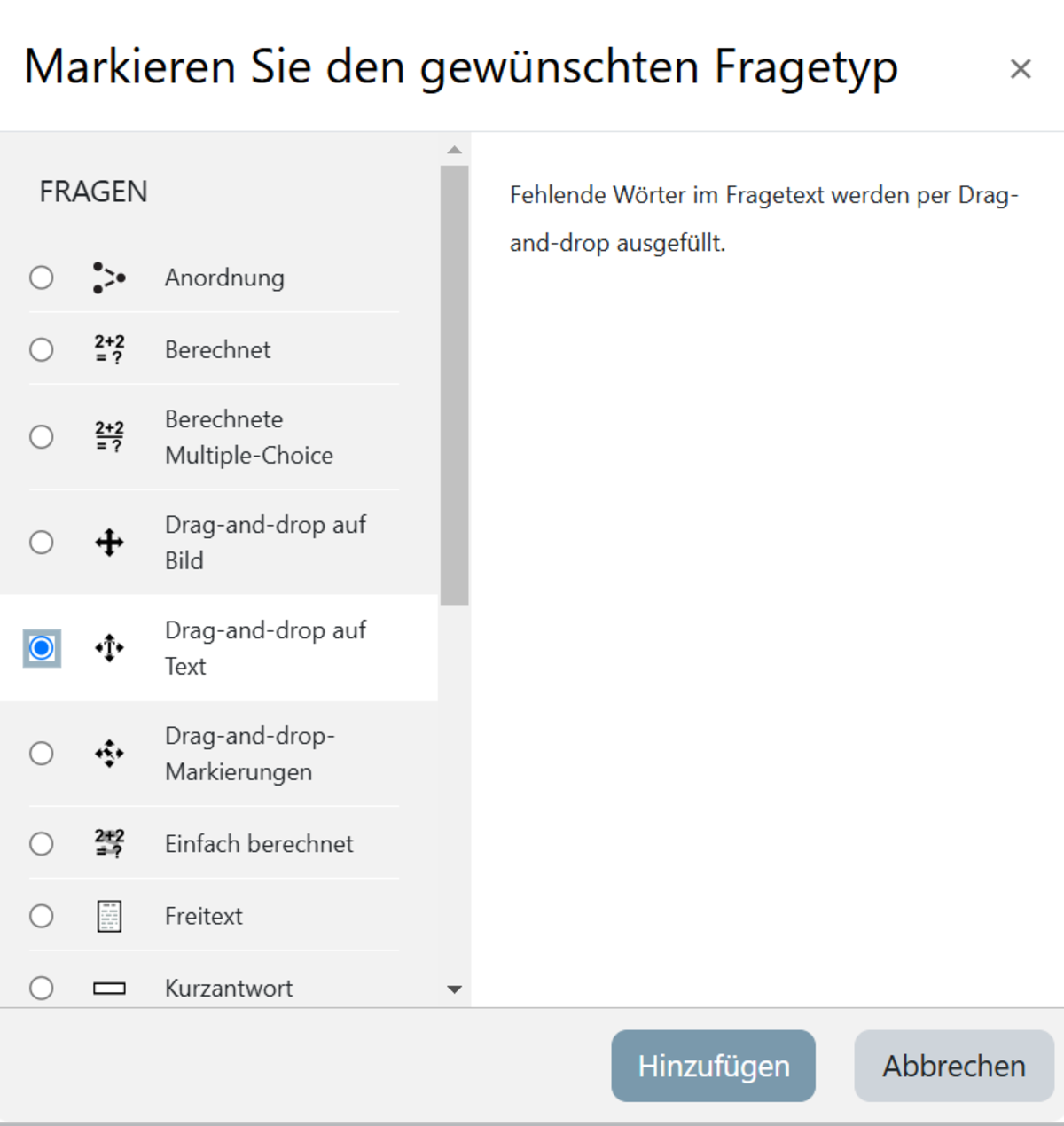
In the selection dialogue that appears, select the question type ‘Drag-and-drop on text’ and confirm by clicking the ‘Add’ button (Fig. 6).


Figure 1
Figure 2
Figure 3
Figure 4
Figure 5
Figure 6
Hinweis

In Moodle, it is sometimes possible to display and format mathematical content clearly using MathJax or LaTeX syntax. However, for this question type, only the question text can be formatted. Unfortunately, formatting is not possible in the answer options, as this may cause display issues in Moodle.

Question types where this problem occurs: Select missing words, Calculated multiple choice, Drag and drop onto text, Matching, Embedded answers (Cloze), Drag-and-drop markers.

Question types that can be used instead:

Help, questions, suggestions

If you need further help* on this topic, have any questions or suggestions, please feel free to contact us at any time!

*Haveyou already thought about looking for help or a solution in our help pages on these pages or in the Moodle documentation (see above or https://docs.moodle.org/)?