Question type: Calculated

One type of question in Moodle that can be used for tests is the calculation question.

Calculation questions allow you to create a whole range of numerical questions using variables ({x}, {y}, etc.). During the test, the variables are assigned randomly generated numbers from a specified range. Units of measurement can also be specified. Generally, this question type is very similar to the ‘Simple calculation’ type, but offers a few more options, such as the use of units of measurement.


Target Audience
Instructors

Objectives
Practice & Assessment

Additional Documentation
Moodle Docs: Calculated Question Type

Moodle Version
This article is based on
Moodle version 4.1

Author
Judith Rechsteiner, Carolin Hecht & Kristina Busch
ZLE – Center for Teaching Development

Context
Activities & Resources > Quiz Activity

License
This article is licensed under a Creative Commons License
All information about the license
Prerequisite: Test

To add the 'Calculated' question type to a test, you must first have created a 'Test' activity in the course.

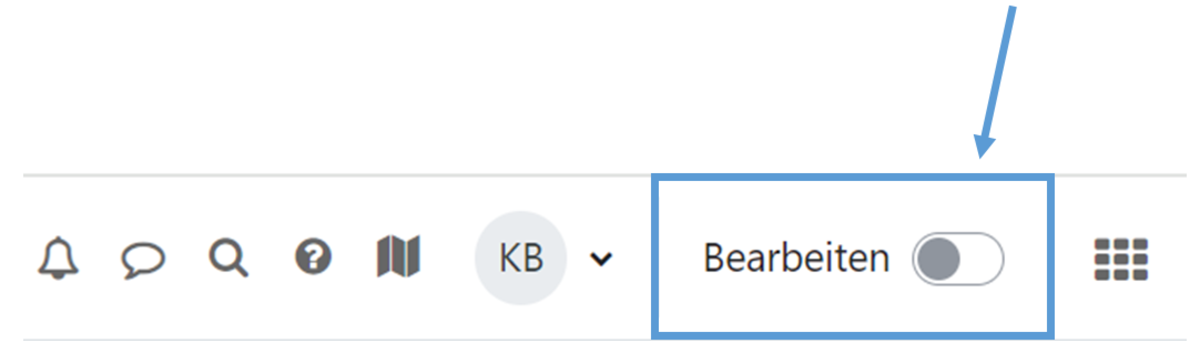
To do this, switch to edit mode (Fig. 1).


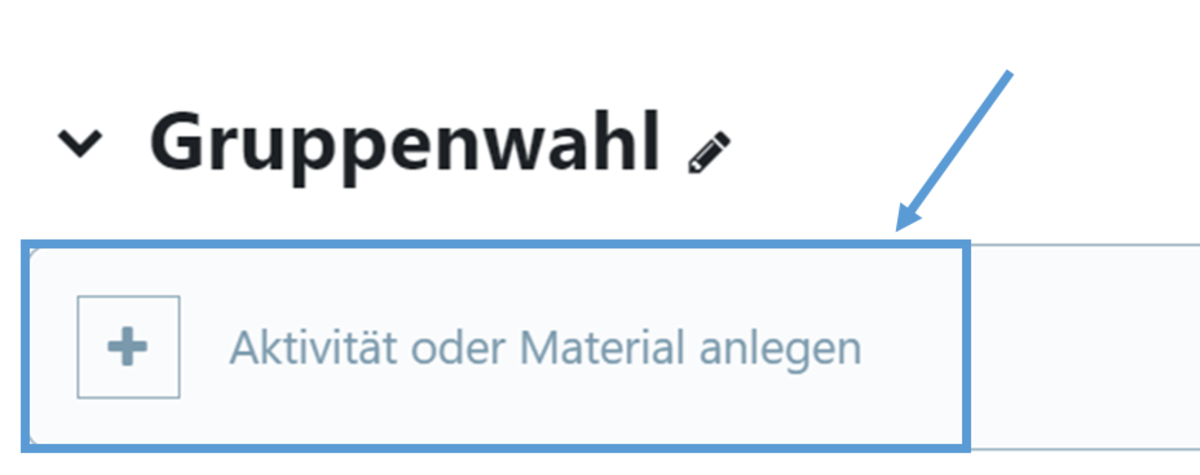
Create the Test activity by first clicking on Create activity or resources (Fig. 2) and then selecting Test (Fig. 3). Then enter a name for the test and save.


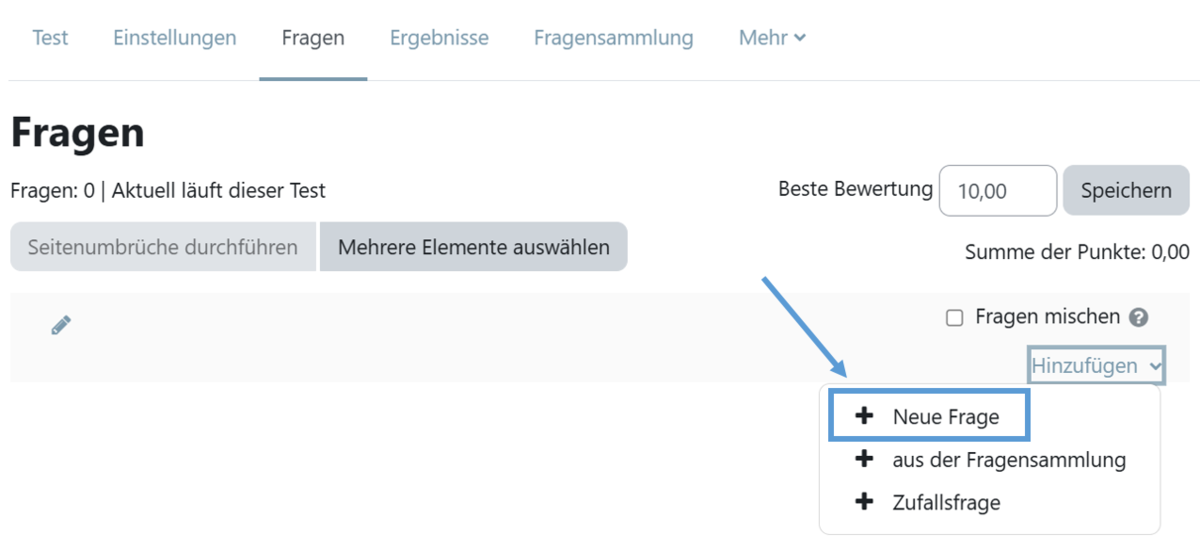
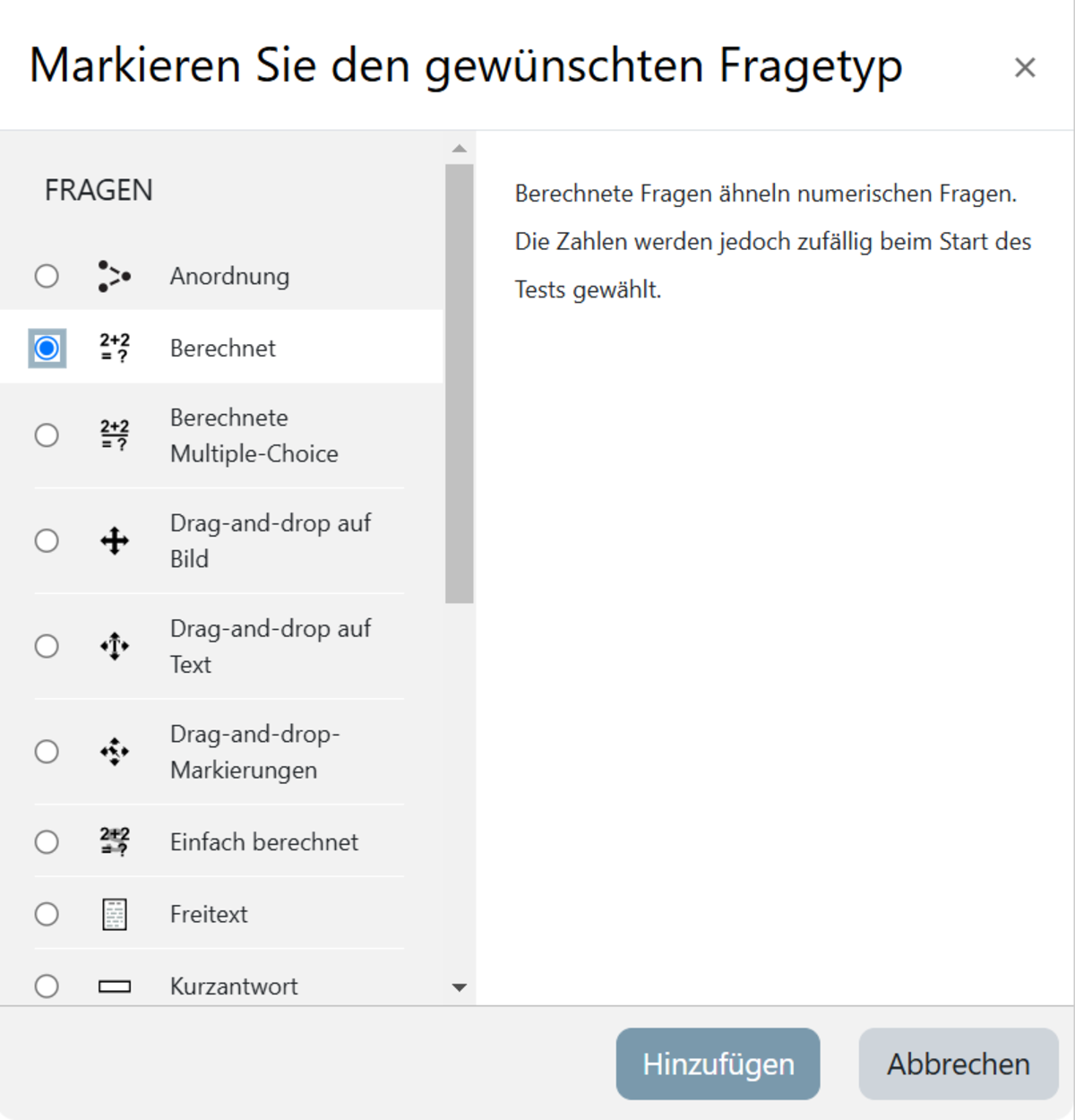
Open the test and select Add question (Fig. 4). On the new page, select Add and New Question (Fig. 5). You can now select a specific question type from the list. Here, select the question type Calculated. Confirm your selection by clicking the Add button (Fig. 6).

Figure 1
Figure 2
Figure 3
Figure 4
Figure 5
Figure 6

Set a task

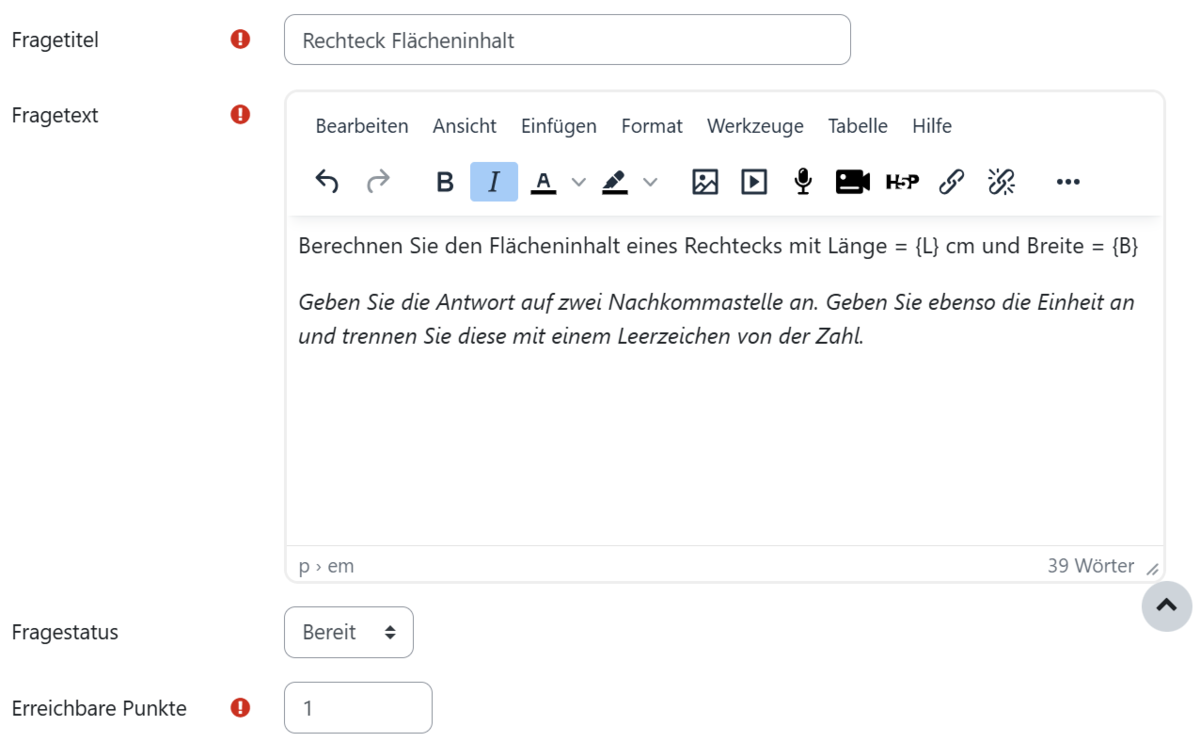
On the page that now appears, start by filling in the mandatory fields under the ‘General’ menu item (Fig. 7). These are marked with a white exclamation mark inside a red circle.

Use the ‘Question title’ field to give the question a name under which it will be listed in your question catalogue.

Under ‘Question text’, enter the instructions for your students. This is the question text. It is important to note that the question must be formulated using placeholders (variables) {a} and {b}. The placeholders must be enclosed in curly brackets {}.

For example: Calculate the area of a rectangle with length = {L} cm and width = {B} cm.

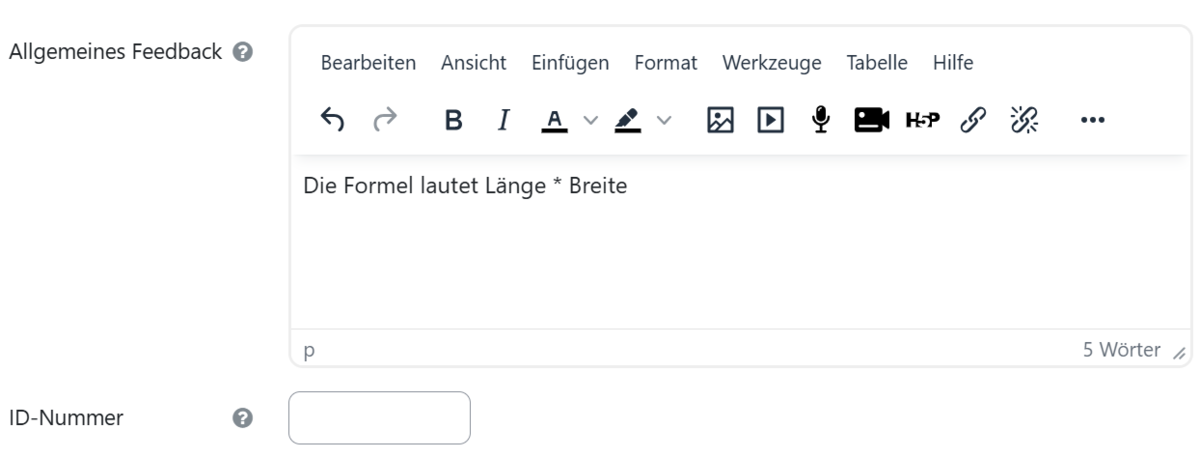
You can then set the marks available for a correct answer to the question and provide general feedback (Fig. 8). The general feedback is displayed to participants after they have answered the question, regardless of the result.

Figure 7
Figure 8

Replies

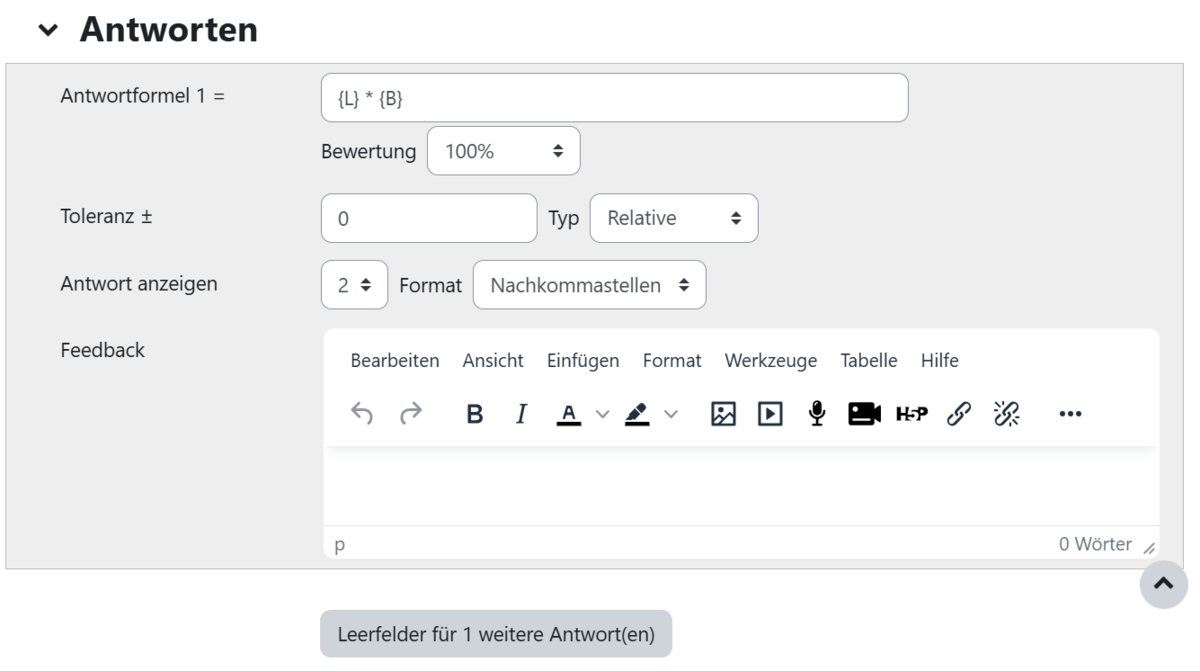
As a possible answer, enter a text that includes the formula and the solution (Fig. 9). Please ensure you use curly brackets here too. For the example above, the answer formula would be 1 = {L}*{B}. Set the corresponding mark to the desired value.

You can then set the error tolerance. This specifies how far the student’s answer may deviate from the correct answer. You can also specify whether the tolerance should be compared relatively or nominally.

You can also decide how many decimal places or significant digits the answer should be displayed to once the question has been answered.

You can then enter individual feedback for each answer option.

Figure 9

Menu items: Use of units of measurement and units of measurement

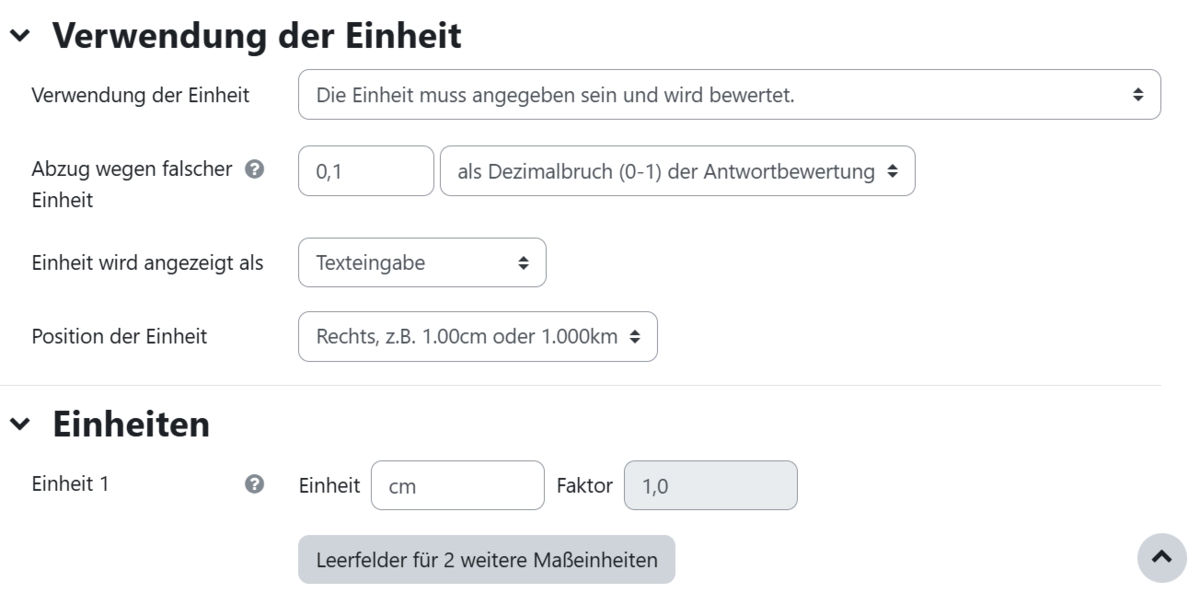
Here you can specify whether a unit of measurement should be used and whether it must be included for the answer to be correct. You can also specify whether points should be deducted for an incorrect unit of measurement, how many points should be deducted, how this is displayed, and where it is positioned (Fig. 10).

Under ‘Units of measurement’, enter the desired units of measurement. You can also select a multiplier. For example, if you specify the unit cm with a factor of 1.0, you can also specify the unit mm with a factor of 100.

Figure 10

Multiple attempts

Under the ‘Multiple Attempts’ menu option, you can create hints that participants can choose to display, and specify how many points are deducted after an incorrect attempt. The deduction is a percentage of the total available points (Fig. 11)

Please note: To use this option, the test must be conducted in either Multiple-choice with hints mode or Multiple-choice (with deductions) mode.

Generate placeholder characters

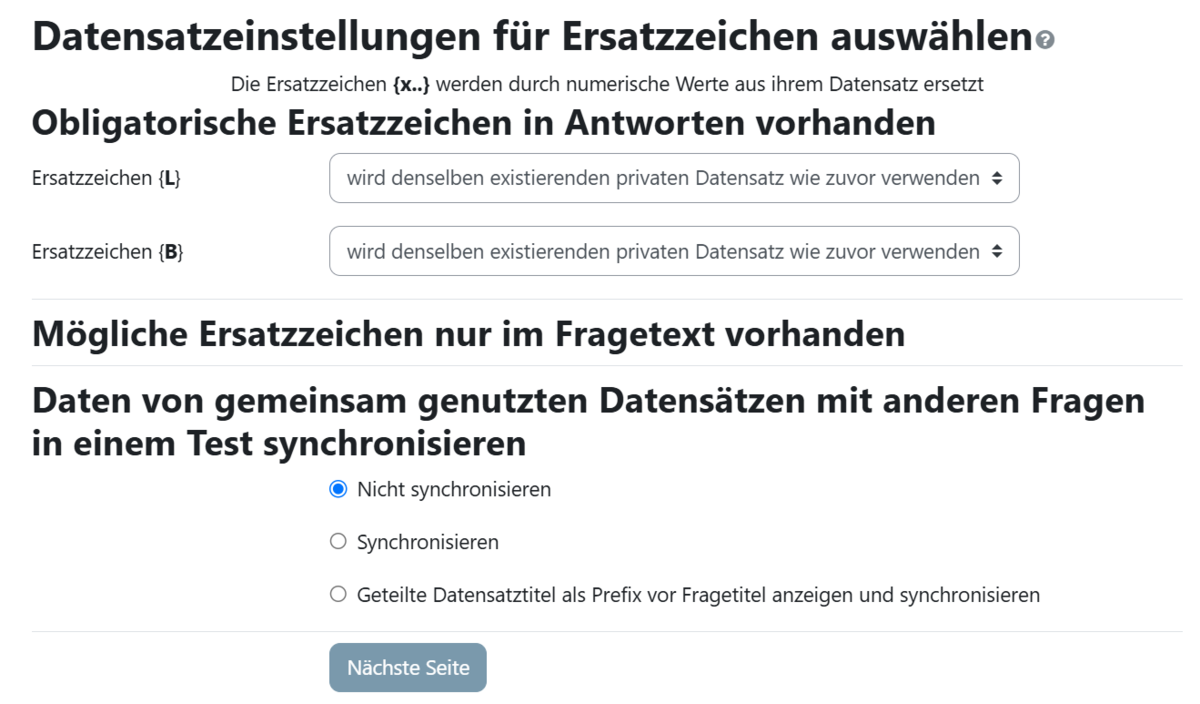
Once you have completed all the steps above, scroll to the bottom of the page and click the ‘Save changes’ button. You will then be redirected to the next page, where you can select the character substitution settings (Fig. 12).

You can leave the settings shown here as they are. Simply click the ‘Next Page’ button.

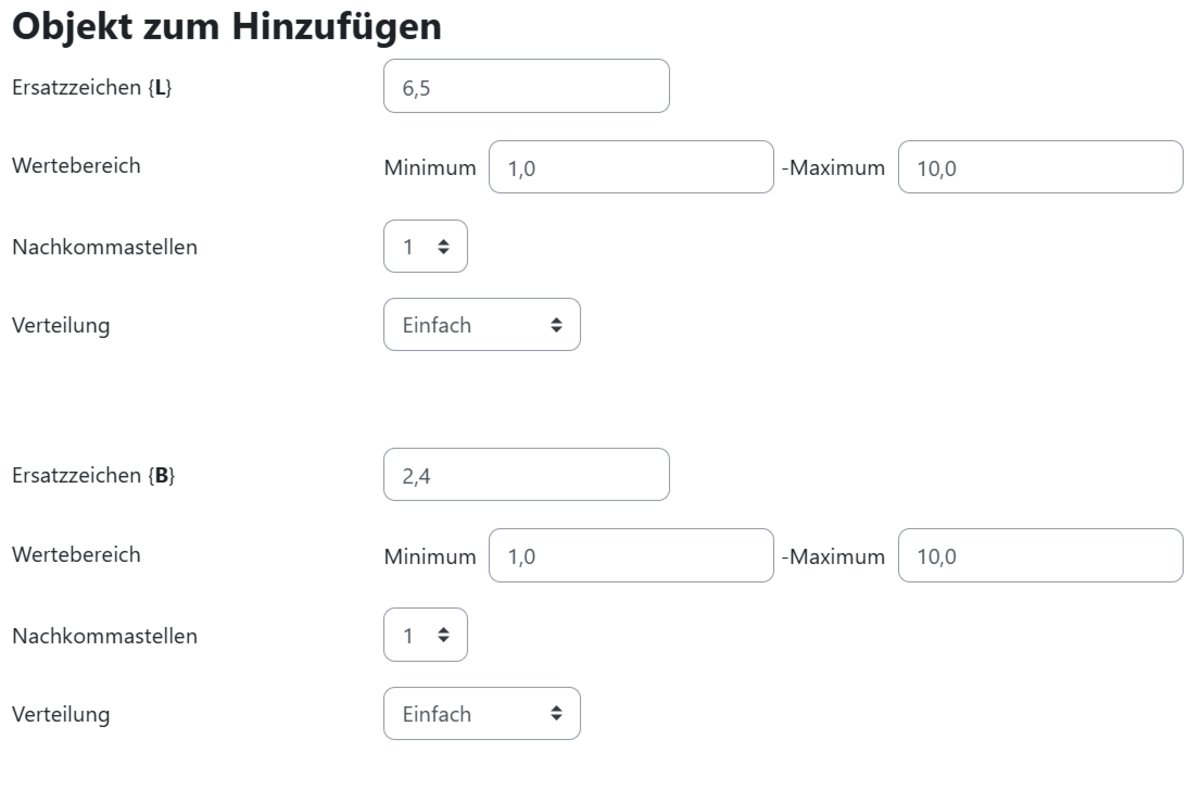
Here you can see a suggestion of which values to add. These values lie between a minimum and a maximum, within which you can enter any figures (Fig. 13). These provide a range within which the figures displayed to students will fall.

In the following section, ‘Response Tolerances’, you can see an example of the selected response tolerances (Fig. 14). You can also adjust the tolerance range again by clicking ‘Show more’.

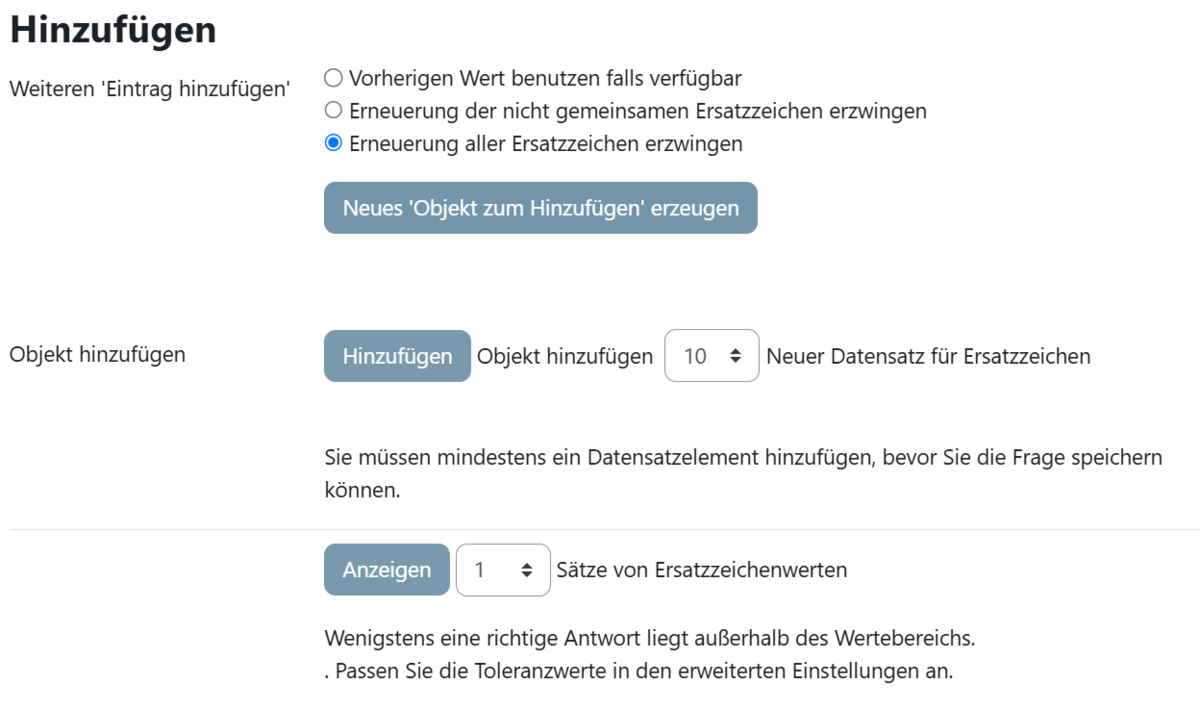
In the next section, ‘Add’, you can choose whether or not to always generate new placeholders (Fig. 15). If you would like new placeholders for each question, select the option ‘Force renewal of all placeholders’. Under ‘Add object’, you can specify the number of tasks to be generated. If, for example, you enter 10, there will be 10 different tasks. Then click on ‘Add’.

Figure 12
Figure 13
Figure 14
Figure 15

Result

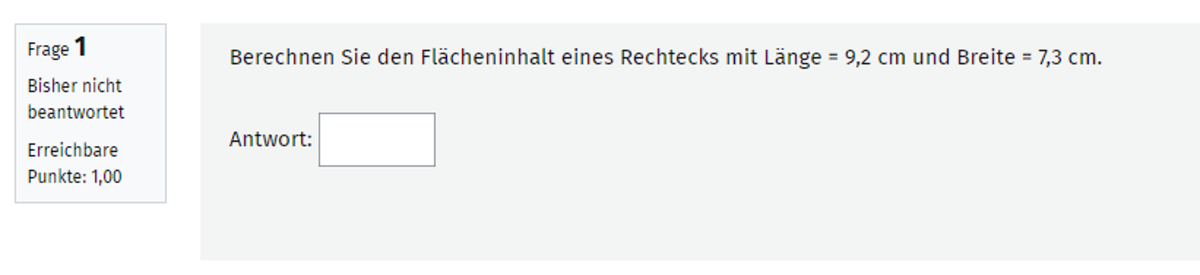
If you want to check what the question type you have created looks like in the test, scroll to the bottom of the page and click on the Preview button. A new window will then open, showing you the question exactly as it will appear to students in the test (Fig. 16). You can also edit the question here yourself.

Figure 16

Help, questions, suggestions

If you need further help* on this topic, have any questions or suggestions, please feel free to contact us at any time!

*Haveyou already thought about looking for help or a solution in our help pages on these pages or in the Moodle documentation (see above or https://docs.moodle.org/)?

Lizenz

Creative Commons Lizenzvertrag
Texte und Bilder in diesem Artikel stehen unter der Creative Commons Lizenz CC BY 4.0

Quellenangabe bei Weiterverwendung:
"Fragetypen: Berechnet" von Judith Rechsteiner, Kristina Busch und Carolin Hecht (Universität Ulm), lizenziert unter CC BY 4.0